
Based in China: From Registering a US Company to Applying for Apple and Google Developer Accounts
I registered a single-member LLC in Wyoming to publish my own apps and get paid from overseas. I'm based in China, I never went to the US, and I don't have an SSN. I placed the order on Oct 20 and submitted my Google Play verification documents on Oct 31, 11 days in all.
This post covers four things in order: registering the company, opening a Mercury bank account, registering a Google Play organization developer account, and registering an Apple organization developer account. I took every screenshot while doing the work, and I've redacted the company name, domain, email addresses, phone numbers, personal names, addresses and all the various ID numbers.
I handed the work of looking up rules and filling in forms to Claude (Claude Code plus the browser extension). I clicked through every payment, signature, verification code and agreement myself.
As I write this, Apple and Google are still reviewing my applications, and the Mercury account hasn't been funded yet. I'll update this post when I have results.
Timeline
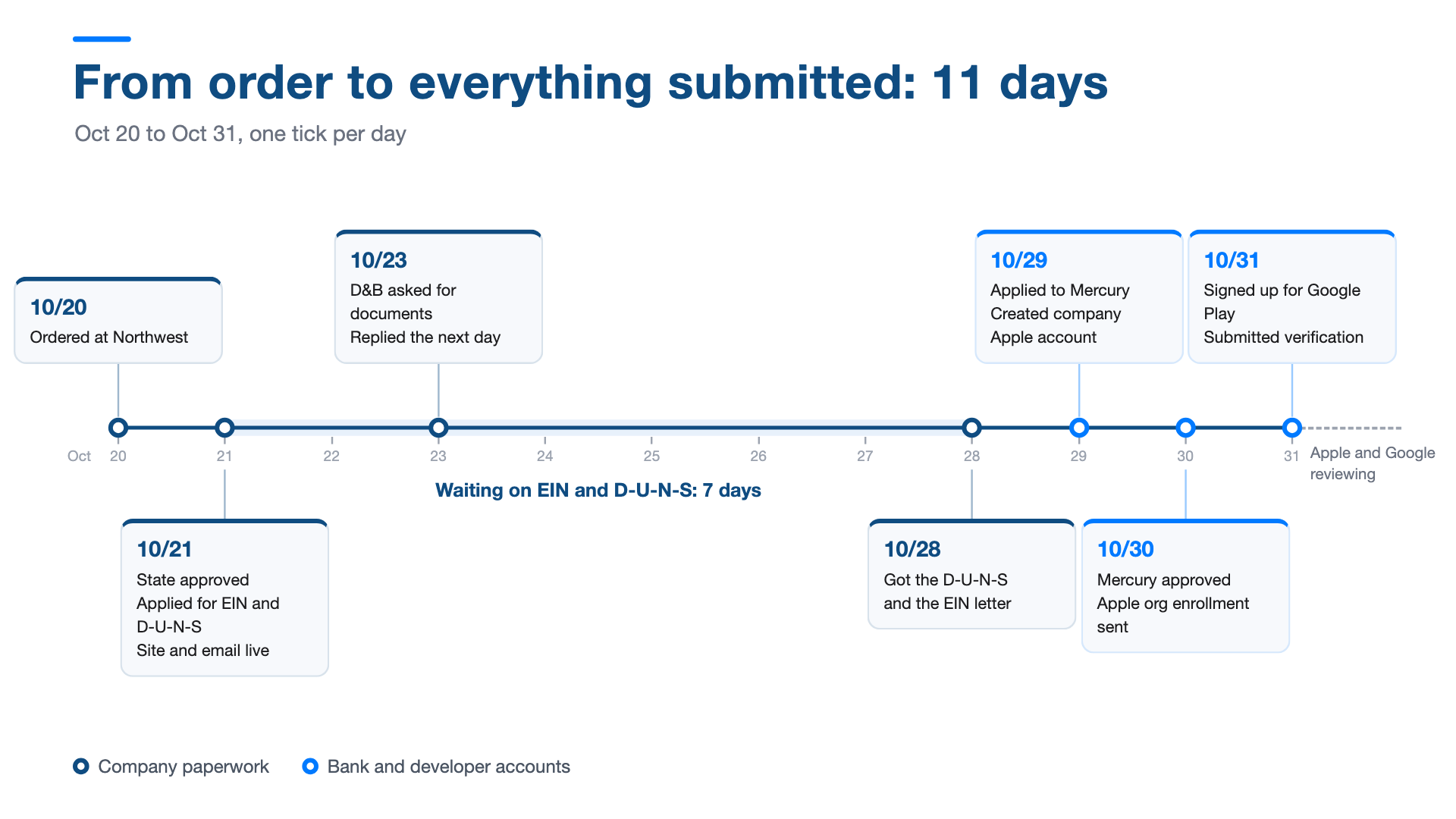
| Date | What happened |
|---|---|
| Oct 20 | Placed an order with Northwest to form a Wyoming LLC |
| Oct 21 | State approved the LLC; signed the operating agreement; applied for the EIN; bought the domain and launched the website and company email; applied for a D-U-N-S number |
| Oct 23 | Dun & Bradstreet asked for more documents; I replied the next day |
| Oct 28 | Received the D-U-N-S number and the EIN confirmation letter |
| Oct 29 | Submitted the Mercury application; registered an Apple Account just for the company |
| Oct 30 | Mercury approved; submitted the Apple organization enrollment on my iPhone and sent the additional documents that night |
| Oct 31 | Registered the Google Play organization developer account and submitted verification |
1. Registering a US Company (Wyoming LLC)
Why Wyoming
If you don't plan to take money from US VCs, Wyoming covers almost everything you need. The state filing fee is a little over $100, and the annual report costs at least $60 a year; a Delaware LLC pays a flat $300 every year. Wyoming has no state-level corporate income tax, and the owners' information isn't made public.
If you plan to raise money, choose Delaware. Investors and lawyers are used to it.
What to Have Ready Before You Start
- Passport
- An email address (use your personal one for now and set up the company domain email later)
- A phone number that can receive text messages
- A credit card that can pay in US dollars
You don't need an SSN or ITIN, and you don't need a US address either. You use the registered agent's address.
Step 1: Order Through a Registered Agent
Every US company must have a registered agent with a physical address in the state, who receives government and court mail on the company's behalf. I used Northwest Registered Agent:
- $39 service fee plus $103 in state fees, $142 in total, including the first year of registered agent service
- From the second year, the agent fee is $125/year and renews automatically
- You can use its address as both the company's principal office address and its mailing address
A few choices when you order:
- For management, choose member-managed. That's the option for a one-person company.
- I skipped both add-ons it recommends: the EIN filing service ($200 without an SSN) and the S Corp election. Only US citizens or tax residents can be S Corp shareholders, so a foreigner can't use it.
I ordered on Oct 20, and the state approved it on Oct 21. Once it's approved, you can download the file-stamped formation document (Articles of Organization) from Documents in the dashboard.
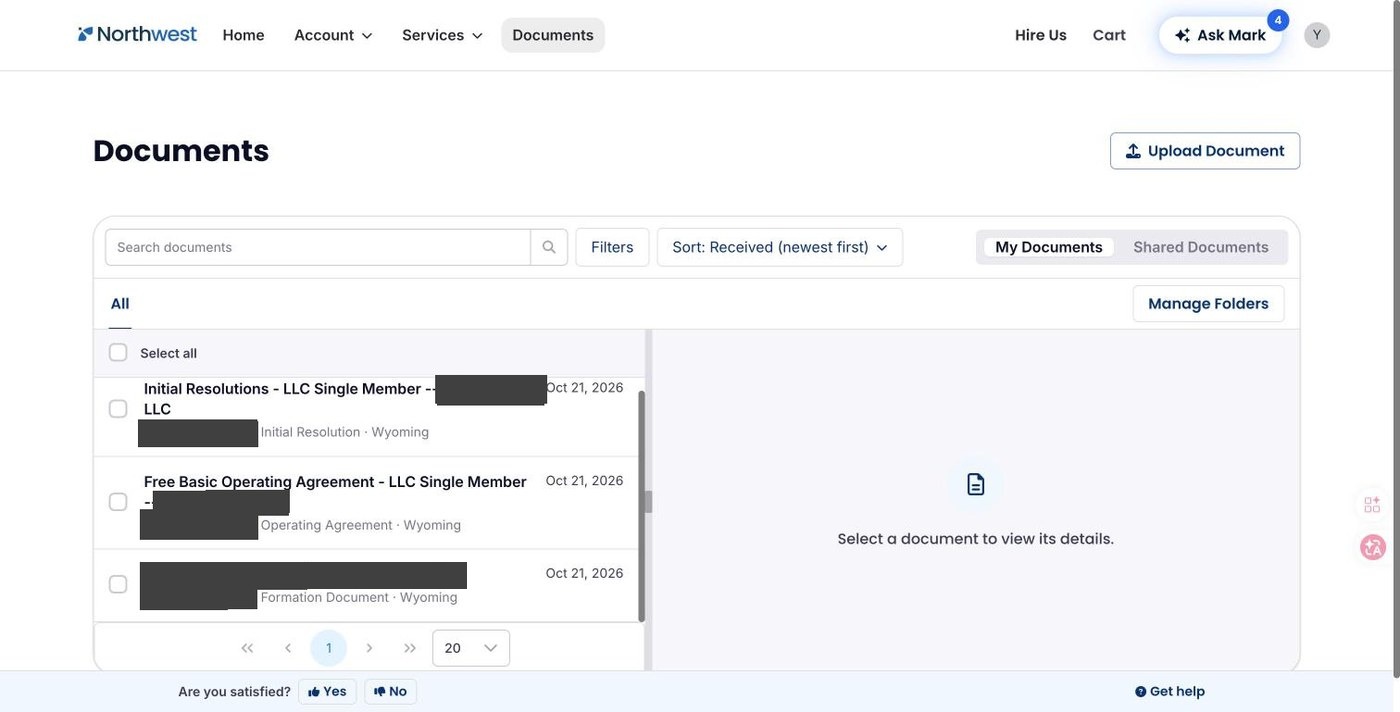
Northwest dashboard: download the formation document, the operating agreement template and the initial resolutions here.
Step 2: Operating Agreement and Initial Resolutions
The operating agreement spells out who the owners are, how much each one contributed, and how the company is run. A single-member LLC doesn't file it with the state, but you may need to show it when opening a bank account or during Apple's review.
Northwest provides a free template. I didn't use it, because it includes a clause that dissolves the company if the sole member dies. I wrote my own, stating that I own 100% and contributed $1,000, and signed it electronically.
Also keep the initial resolutions that Northwest gives you. The Organizer named on the formation document is Northwest, and your own name doesn't appear on it. The initial resolutions are the written record of Northwest handing the company over to you as its member. When Apple later asked me to prove "your relationship to the company", I sent the operating agreement, the initial resolutions and the EIN confirmation letter.
Step 3: Get an EIN (Federal Tax ID)
The EIN is effectively the company's tax ID. You need it to open a bank account and to publish apps and collect payments. A foreigner without an SSN has three options:
| Method | Cost | Notes |
|---|---|---|
| Call the IRS international line at 267-941-1099 | Free (you only pay for the international call) | Answered Monday to Friday, 6:00 to 23:00 US Eastern Time. You need to be able to handle the call in English, and they give you the number during the call |
| Fax Form SS-4 | Free | From outside the US, fax it to 304-707-9471. Include a number on the form that can receive faxes, and the IRS faxes the EIN back |
| Use a filing service | $50 to $200 | I used EasyFiling for $99. It took 7 days from submission to receiving the 147C confirmation letter |
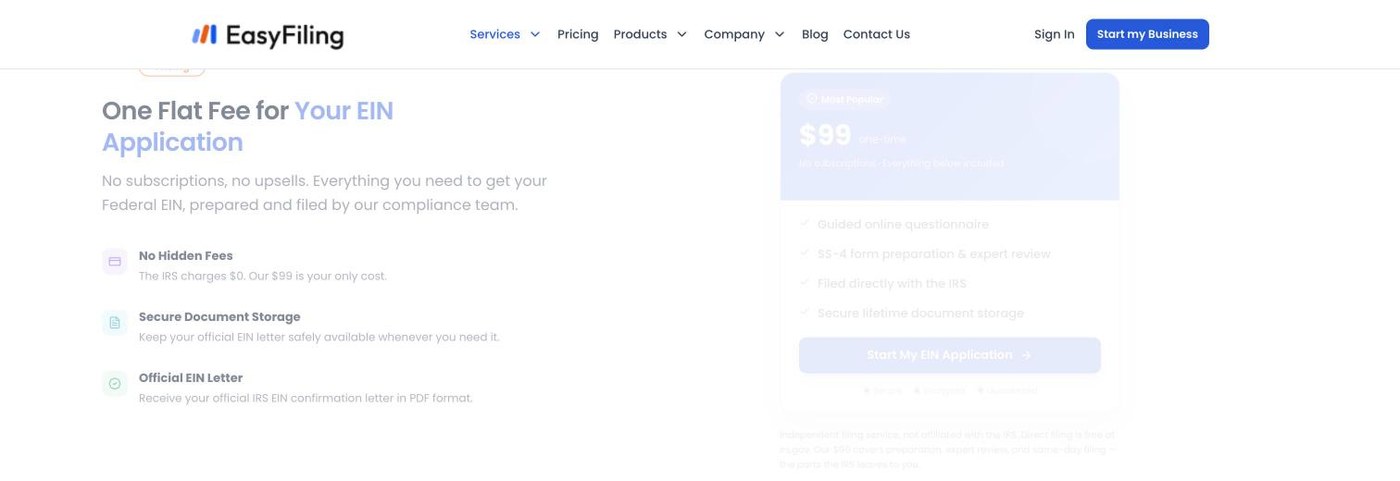
EasyFiling's EIN filing service, a flat $99. The IRS itself charges nothing.
Two things to watch if you use a service:
- List yourself as the Responsible Party and identify as a foreigner ("Foreigner"). You don't need an SSN.
- EasyFiling has a button to "automatically extract information from your formation document". When I tried it, it read the company name as "Limited Liability Company" and the suffix as "Ltd". Don't click it; fill in the fields by hand.
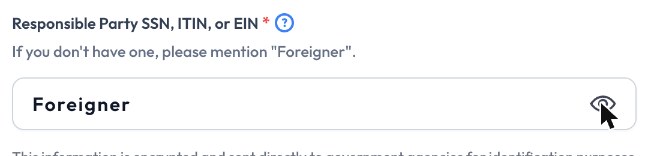
If the responsible party has no SSN or ITIN, enter Foreigner in this field.
Once the EIN comes through, save the IRS confirmation letter (CP 575 or 147C). Mercury and Google both ask to see it.
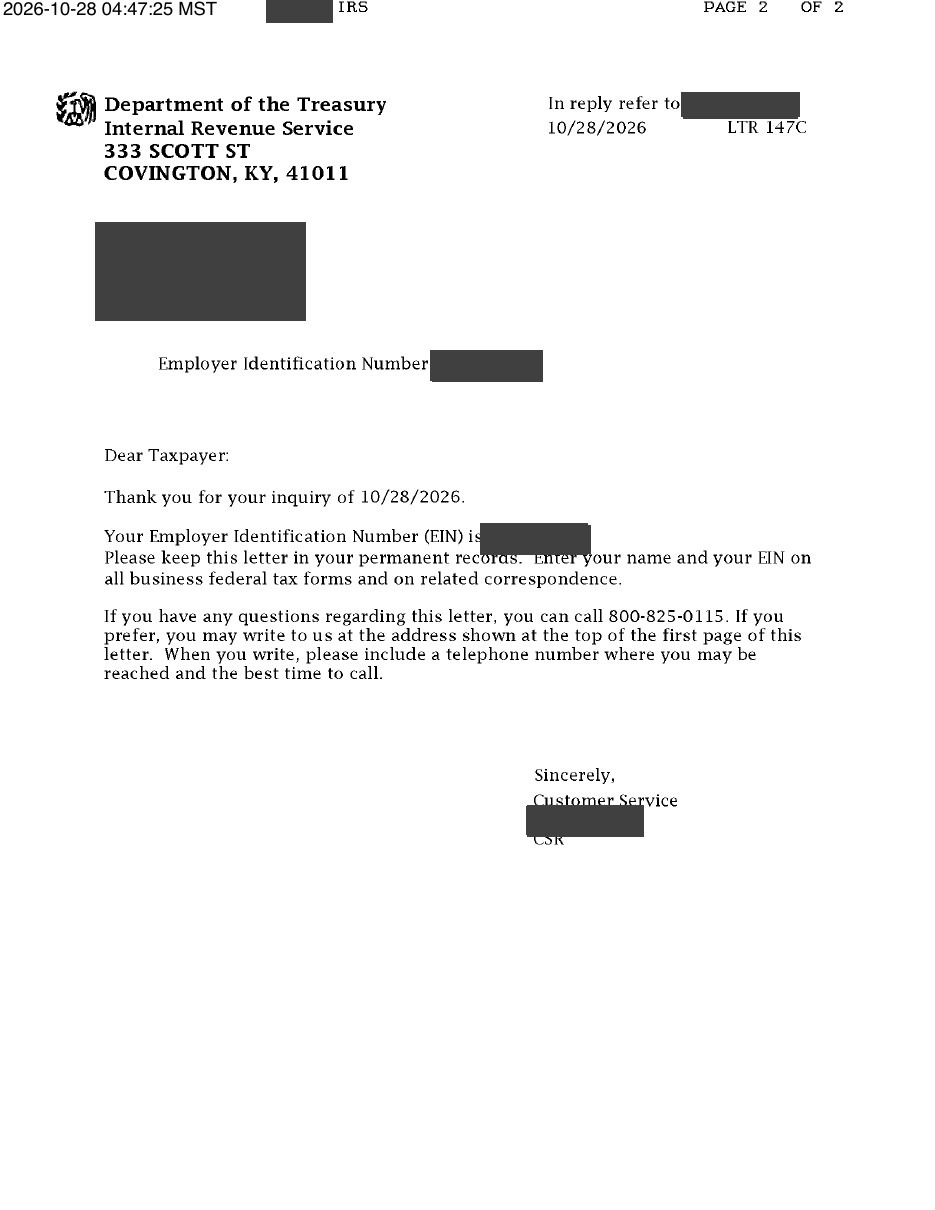
The IRS 147C confirmation letter. The company name, address, EIN and letter reference number are redacted.
Step 4: Domain, Website and Company Email
The bank application and the developer reviews later on all look at your website, and your email should ideally be on the company domain too.
- Domain: I bought a .com on Cloudflare for about $11 a year. Cloudflare sells domains at cost, with none of the cheap-first-year, pricier-renewal routine.
- Email: Cloudflare Email Routing is free and can forward hello@yourdomain to your own Gmail. Later, when I registered for Google Play, I added a dev@ address as well, which took a few minutes.
- Website: a single static page is enough. Show the company's legal name, registered address and contact email, and add a privacy policy page. Apple's requirements for the website are that it loads, that the domain belongs to the company, and that it isn't an empty shell. I host mine on Cloudflare Workers for free.
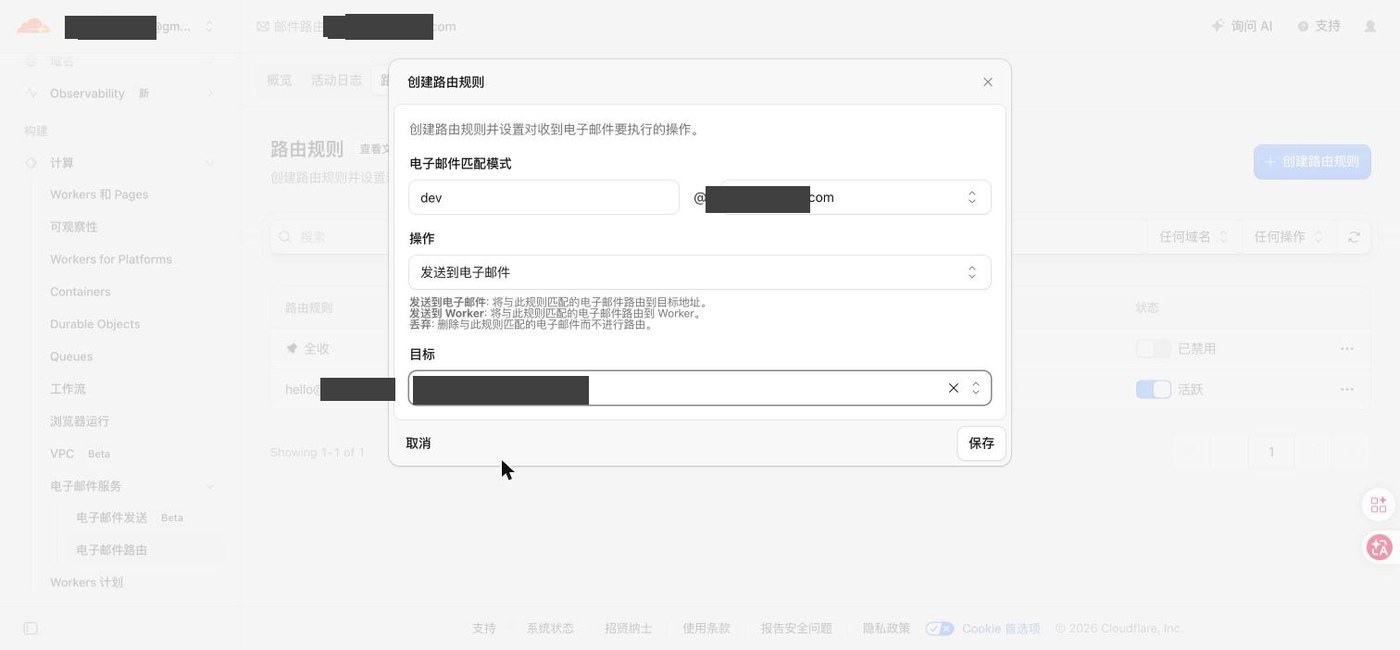
Cloudflare Email Routing: create a new rule that forwards dev@ to your personal Gmail. The entry in the list behind it is the hello@ rule I created earlier.
Step 5: Apply for a D-U-N-S Number
A D-U-N-S number is a free nine-digit business identifier issued by Dun & Bradstreet. Apple and Google both require one for organization developer accounts, to confirm that the company really exists.
The easiest way in is Apple's lookup tool at developer.apple.com/enroll/duns-lookup, which you can use after signing in with any Apple Account:
- Enter the company's legal name, address and phone number, and search.
- If nothing comes up, click "submit your information" to send your company details to Dun & Bradstreet.
- A couple of days later, Dun & Bradstreet emails you asking for documents. Mine arrived on Oct 23 and asked for a reply within 72 hours. The next day I sent back their Business Information Form and the formation document.
- The number arrived on Oct 28.
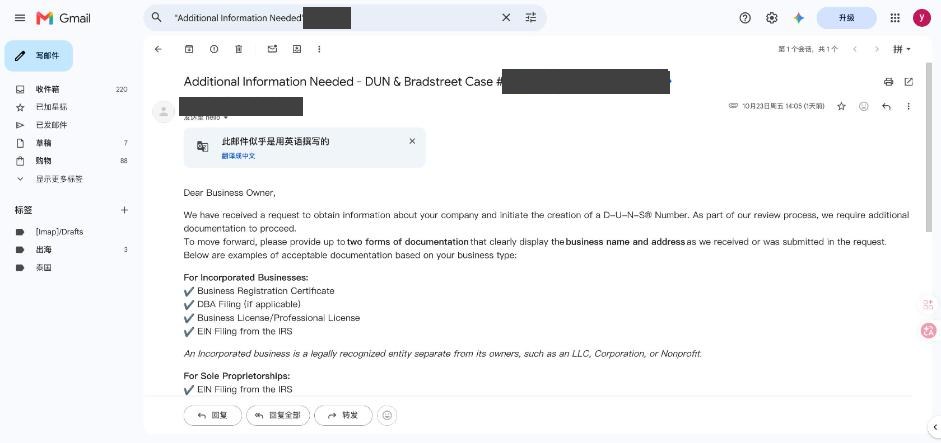
Dun & Bradstreet's request for more documents: two documents that clearly show the company name and address.
Getting the number doesn't mean you can use it right away. Dun & Bradstreet first has to sync it into its own database, and then Apple syncs it from Dun & Bradstreet. My company only showed up in Apple's lookup tool two days after I got the number.
One trap: the first time I searched, the tool matched a company with a very similar name, also in Wyoming and in the same building, just in a different suite. Don't select it. If you do, you're using someone else's number.
What You Have to Do Every Year
- Form 5472 plus a pro forma Form 1120: a single-member LLC owned by a foreigner has to file by Apr 15 every year, even with zero income, starting with the year it's formed. The penalty for missing it starts at $25,000. Money you pay on the company's behalf (formation fees, annual fees) and capital you put into the company account all count as reportable related-party transactions, so keep the receipts.
- Wyoming annual report: due every year in the month the company was formed, minimum $60.
- Registered agent renewal: $125/year.
- Domain renewal.
- BOI (beneficial ownership information) report: since 2025, FinCEN rules say companies formed in the US don't have to file. This rule has changed several times, so check the FinCEN website again when the time comes.
Pitfalls I Hit in This Part
- The free domain Northwest offers failed both times I tried to create it, so in the end I bought one on Cloudflare myself.
- I clicked too fast when buying the domain and bought an extra, misspelled one. All I could do was set it to redirect and turn off auto-renew. I'm counting the $11 as the cost of the lesson.
- Your name isn't on the formation document; the organizer is the registered agent. Proving the company is yours relies on the operating agreement and the initial resolutions, so keep both safe.
- On every form, your English name must match your passport exactly: surname, given name and spacing.
2. Opening a Mercury Bank Account
With the EIN in hand, the next step is a business bank account. I chose Mercury, a US online bank that lets founders who aren't US residents open an account remotely, with no monthly fee on the basic account. I submitted on the afternoon of Oct 29 and got the approval email the next day.
What to Prepare
| Document | Requirement | What I used |
|---|---|---|
| Passport | Photograph the document and take a selfie on your phone | Passport |
| Proof of address | From the last 90 days, showing your name and home address | October statement for my China Merchants Bank credit card (PDF) |
| EIN confirmation letter | IRS CP 575 or 147C | 147C |
| Proof of source of funds | A statement for whichever account the first deposit will come from | Monthly statement from ZA Bank (Hong Kong) |
| Company formation documents | Mercury checks them with the state itself | Wasn't asked to upload them |
| Website | Loads and shows company information | The company website |
Write the company description in advance. It's limited to 299 characters.
Application Steps
- Sign up: register with your company email and set a password.
- Company information: industry, company type (LLC), description, phone, website, social media accounts.
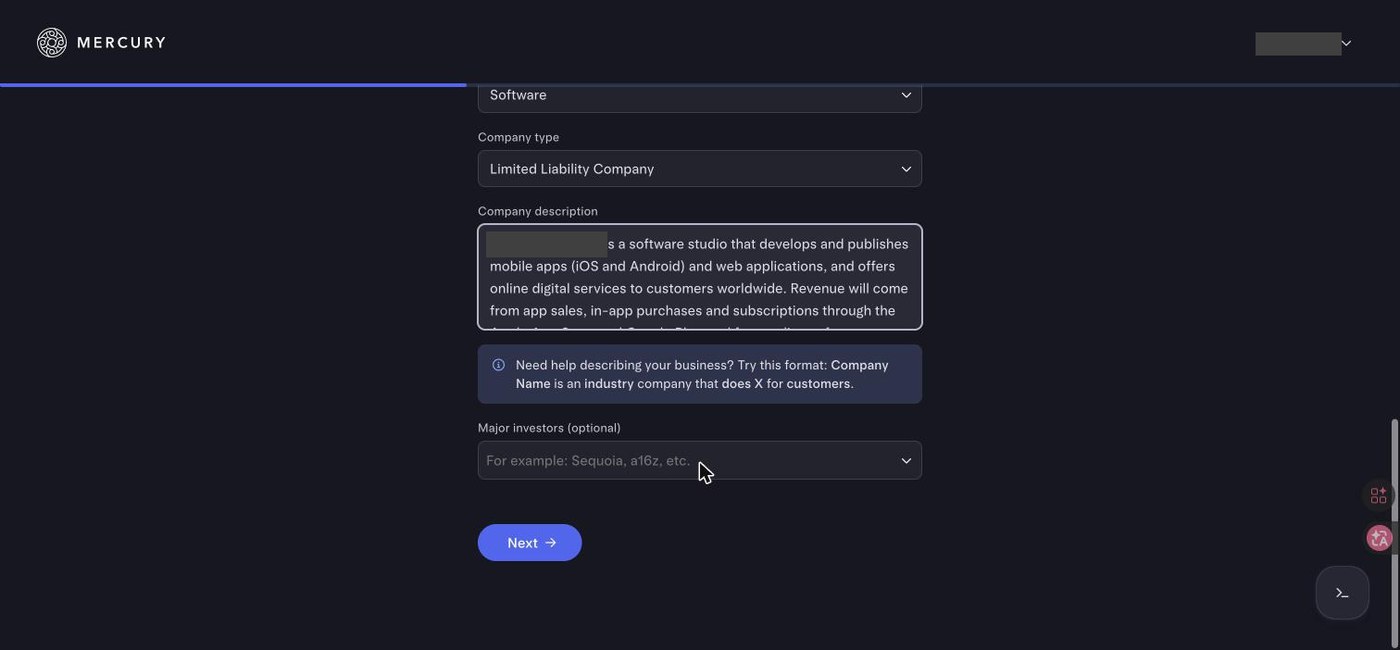
The company information page. A description longer than 299 characters doesn't trigger an error; it just doesn't save.
- Addresses: you need two. For Legal Address, enter the registered agent's US address. For Physical Address, enter your real home address in China. Mercury doesn't accept a mail center or virtual address as the physical address.
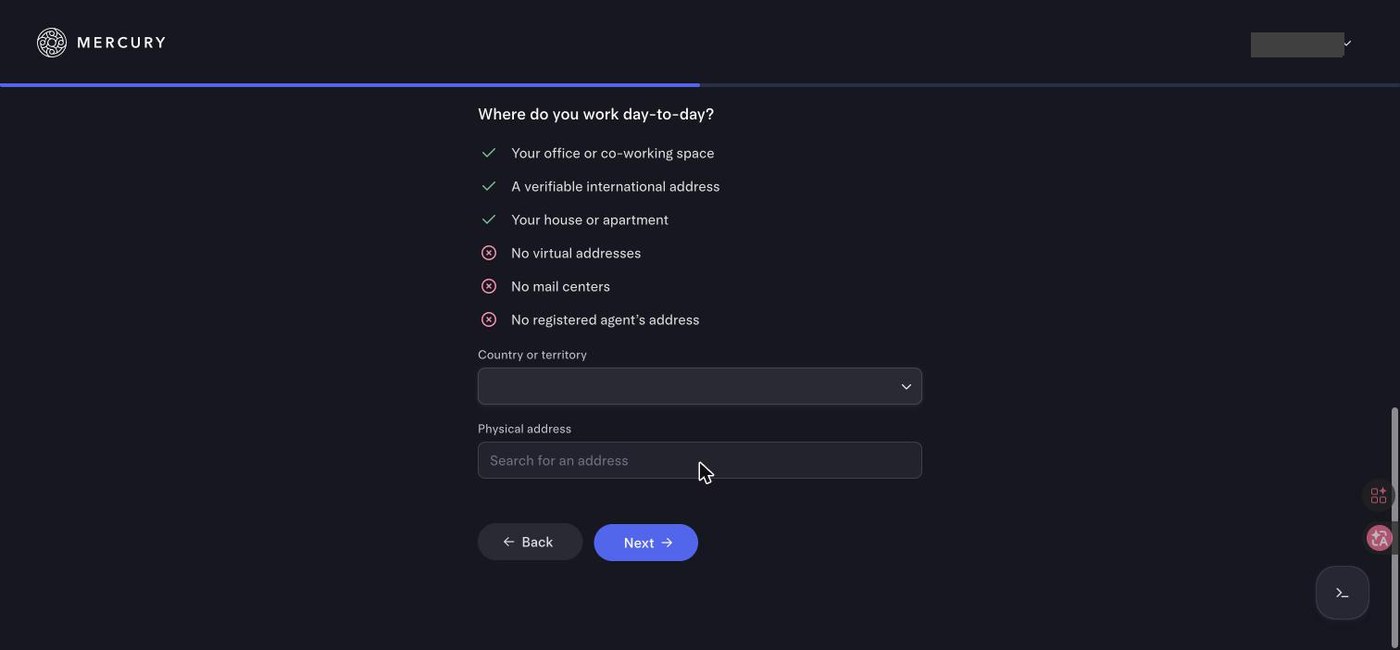
Physical address: an office, your home or a verifiable international address all work. Virtual addresses, mail centers and the registered agent's address are all rejected.
- Owner information: title (I entered CEO), 100% ownership, Non-Resident, and the same home address as above. The Control Person is also you.
- Identity verification: scan a QR code with your phone, then photograph your passport and take a selfie.
- Upload the EIN confirmation letter and proof of address.
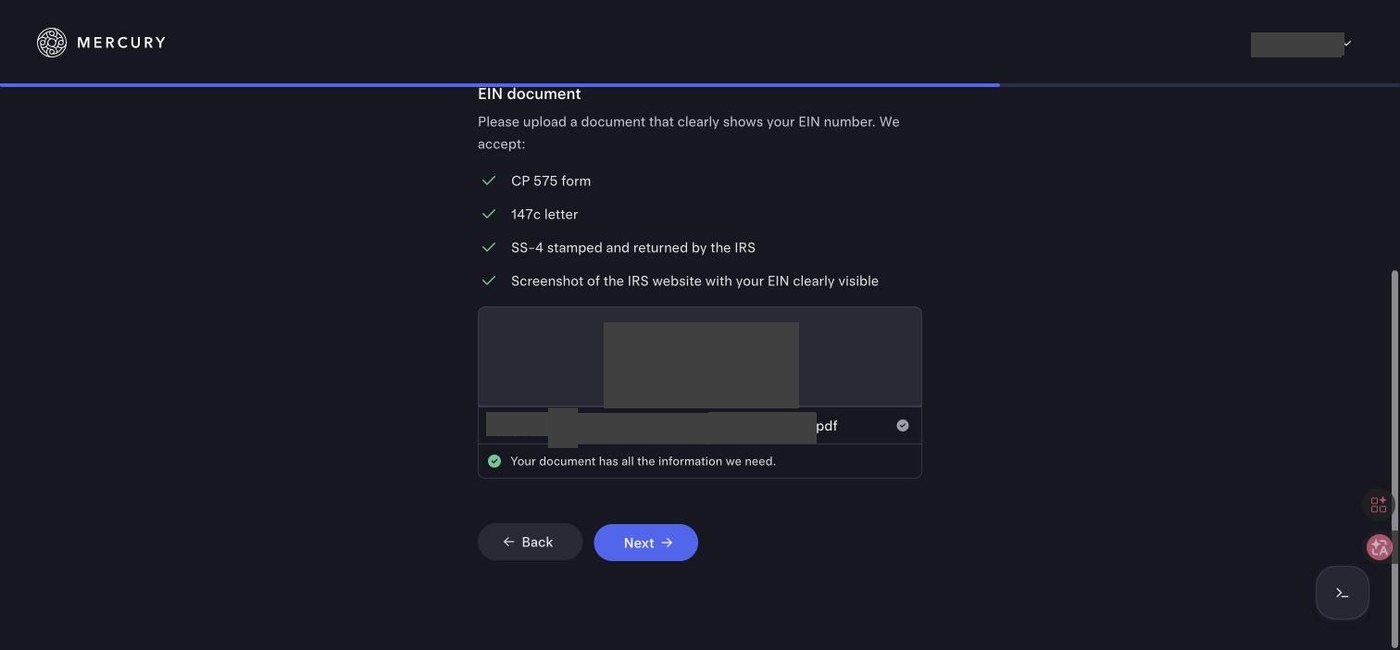
The 147C is all you need. When "Your document has all the information we need" appears below it, the document has passed the check.
- Expected activity: for where your first deposits come from, choose Self (your own money). For expected average monthly balance and for monthly incoming and outgoing payments, I picked the $0 to $10K bracket each time. For the countries you'll send and receive money in, I chose China and the US, then later added Hong Kong, because the money would be wired from there.
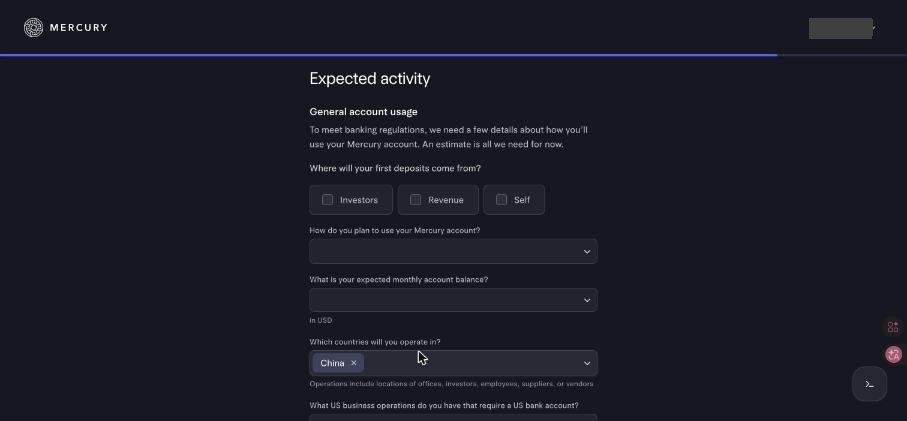
Expected activity: tick Self for the first deposits and leave Revenue unticked.
- Additional questions: upload proof of source of funds and answer a few questions about the business.
- Accept the agreements and submit. The page shows "In review, approx. 1 day".
After Approval: Getting the First Money In
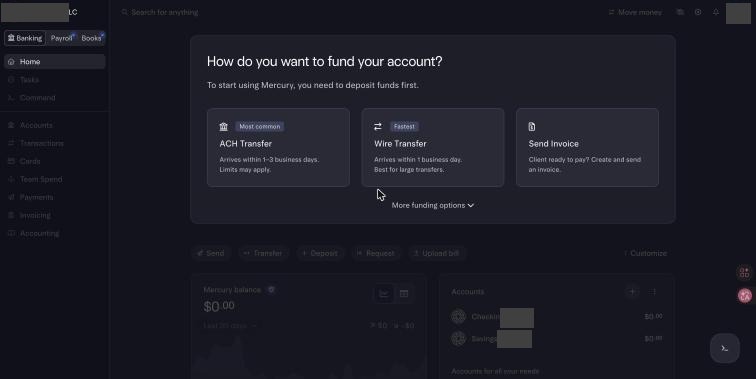
After approval, the first thing the home page asks is how you want to fund the account. For money from abroad, click Wire Transfer.
Use an international wire (SWIFT):
- The receiving details are on the dashboard home page: under "How do you want to fund your account?", click Wire Transfer, then Send international wire. The page lists the receiving bank (mine is Column N.A.), the SWIFT code and the account number.
- Copy the account number with the copy button on the page. Don't type it out by hand: get one digit wrong and the money goes astray.
- Ideally, send from the same account whose statement you submitted with the application, held in your own name.
- In the payment reference, write Capital contribution plus your name. It makes bookkeeping easier later.
- Intermediary banks may deduct anywhere from a dozen to several dozen dollars in fees, so it's fine to send a little extra.
- Keep the wire receipt. You'll need it for Form 5472 next year.
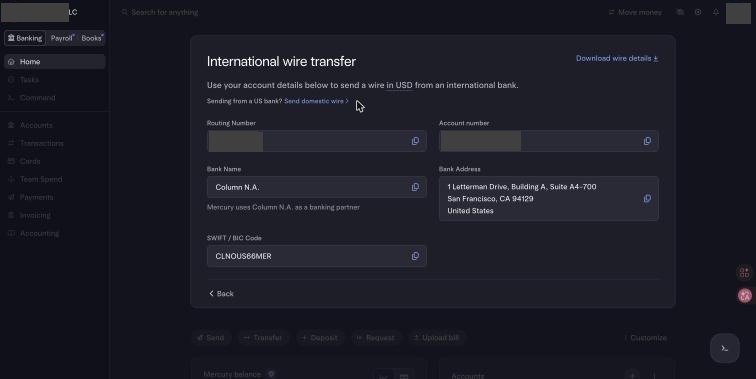
The Send international wire page. The routing number and account number are redacted, and each has a copy button next to it.
Once the money arrives, you can create a virtual debit card for developer fees and subscriptions such as Apple's and Google's. I haven't opened the IO credit card recommended in the approval email yet.
A Note on Foreign Exchange
Individuals in mainland China get an annual foreign-exchange quota of $50,000, which can't be used for overseas investment. Funding your own US company falls under that restriction too. I used money that was already sitting in my Hong Kong account. If the amount is large, ask a professional first how to do it in a compliant way.
Pitfalls I Hit in This Part
- My company description was over 299 characters. No error appeared; it just silently didn't save. Only on the last page did I get a "company information incomplete" message, and it went through after I went back and shortened it.
- After I clicked Save, the spinner kept spinning. It had actually saved; refreshing the page fixed it.
- A combined statement was rejected as "too old". I first uploaded a combined statement covering July to October, and the system went by the earliest month, July, and judged it to be more than 90 days old. Uploading the October statement on its own worked.
- Don't tick Revenue as the source of first deposits. If you do, you'll be asked to prove the company already has revenue.
- Upload the bank's consolidated monthly statement, because a brokerage investment statement doesn't count as a bank statement. My account didn't hold much cash, so I merged the two into one PDF and uploaded them together, and that passed too.
- For two-factor authentication, skip the default passkey. The phone passkey it relies on often can't connect from inside China. Choose "Use 2FA codes instead" and scan the code with Google Authenticator.
- The home page prompts you to connect a US bank account through Plaid. If you don't have one, just skip it.
3. Google Play Organization Developer Account
Personal Google Play developer accounts created since November 2023 must run a closed test with at least 12 testers for 14 consecutive days before their first app can be published. Organization accounts don't have this requirement, and the store page shows the company name. The trade-off is that you need a D-U-N-S number and there are more verification steps.
I registered on Oct 31, paid $25, submitted every verification I could that same day, and I'm now waiting for Google's review.
What to Prepare
| Item | Notes |
|---|---|
| D-U-N-S number | I registered 3 days after getting the number. Entering it pulled up the company details |
| A Google Account just for the company | Register it with a company domain email, such as hello@yourdomain |
| A second company email | The contact email can't be the same as the sign-in email, so I added a dev@ |
| Website | You'll verify ownership later |
| Passport | Take a photo of the data page |
| Company proof document | The IRS EIN confirmation letter, or the formation certificate from the state |
| Credit card | To pay the $25 registration fee |
Step 1: Create a Google Account with the Company Email
Create the account at accounts.google.com. There are three things to watch.
First, choose "For my personal use". Choosing "For work or my business" takes you to the Google Workspace signup page. Workspace is a paid business email service, and it would also take over your domain's email settings.
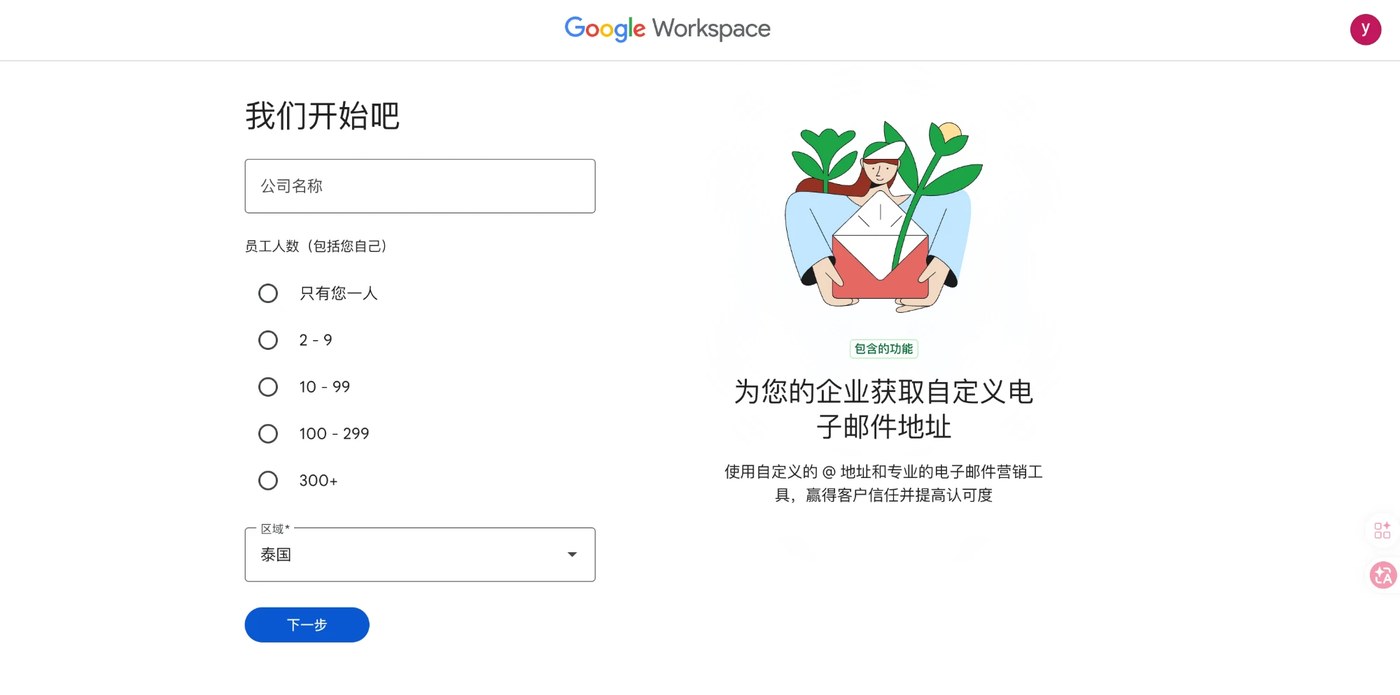
Choosing "For work or my business" lands you on this page. This is the paid Workspace signup, so close it and start over.
Second, at the step where you choose a Gmail address, click "Use your existing email" and enter hello@yourdomain as the address. The verification code gets forwarded to your personal inbox.
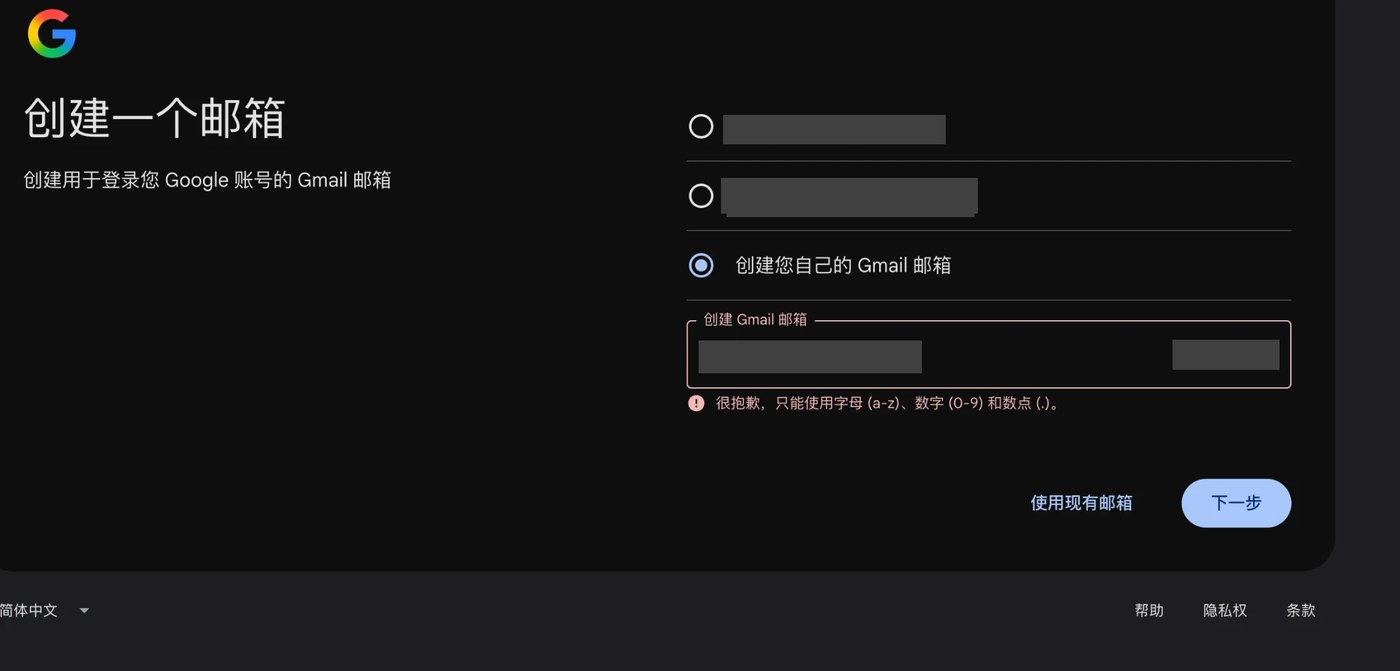
Typing the company email into the Gmail address box gives an error. Click "Use your existing email" at the bottom right.
Third, phone verification. My +86 number (a mainland China mobile number) was rejected right away with "This phone number cannot be used for verification." It only went through after I switched to a Thai number. If a number is rejected, don't keep retrying; more attempts only make it stricter. Use a different number, or sign up on your phone instead.
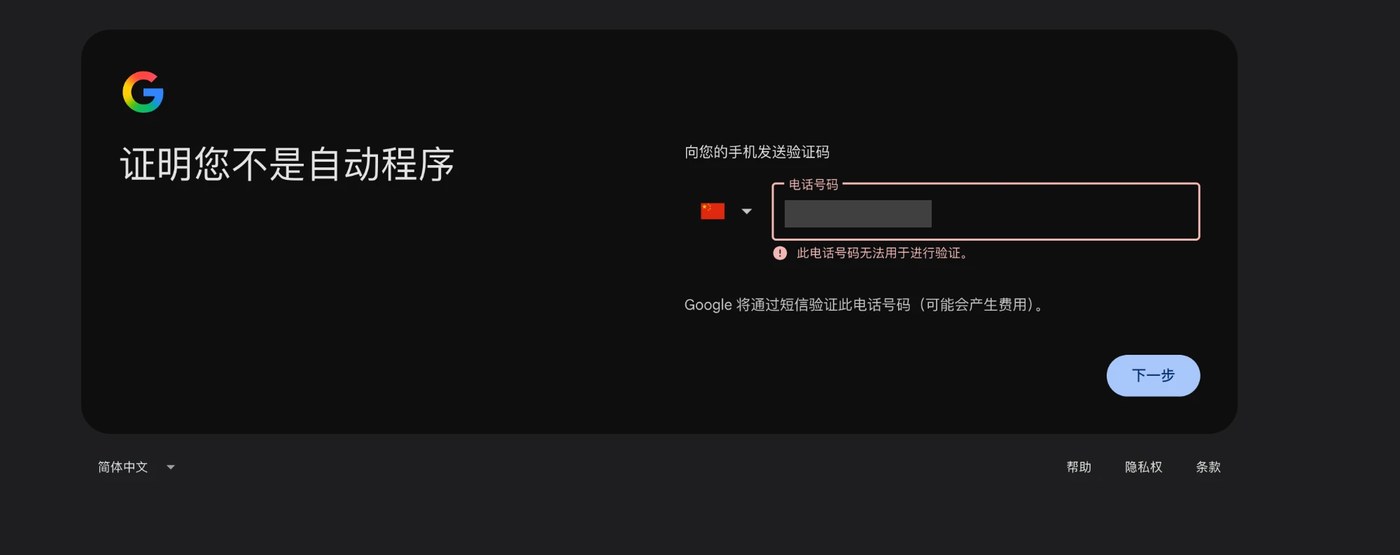
The +86 number, rejected.
Once the account is set up, turn on 2-Step Verification right away with Google Authenticator, and save the backup codes in your password manager.
If your personal Gmail is also signed in to the browser, check which account is active at every step. The first time I opened the Play Console signup page, it defaulted to my personal Gmail, and I nearly registered the developer account under my personal account.
Step 2: What to Enter on Each Page of the Signup Form
Open play.google.com/console/signup:
| Page | What to enter |
|---|---|
| Account type | Organization, then "Company or business" |
| Developer name | The name shown on the store. It can differ from the legal name and can be changed later |
| Payments profile | Create a new one and enter your D-U-N-S number. It automatically pulls in the company name and address registered with Dun & Bradstreet; check them and confirm. Once the country is set, it can't be changed |
| Your organization | Number of employees; organization phone number, written as +86 followed by the number with no spaces (spaces cause an error); website |
| Public profile | Developer phone number and email, which are shown publicly to all users. Tick the box agreeing to make them public |
| About you | Your development experience (you can add a GitHub link); whether you've signed in to Play Console with another account in the past 6 months, answered truthfully |
| Apps | How many apps you plan to publish in the next 12 months, how you'll make money, and whether they fall into sensitive categories such as finance, health or children |
| How Google contacts you | Contact name, contact email (must differ from the sign-in email and be on the company domain), email language, phone number |
| Terms | Tick the two agreements and click "Create account and pay" |
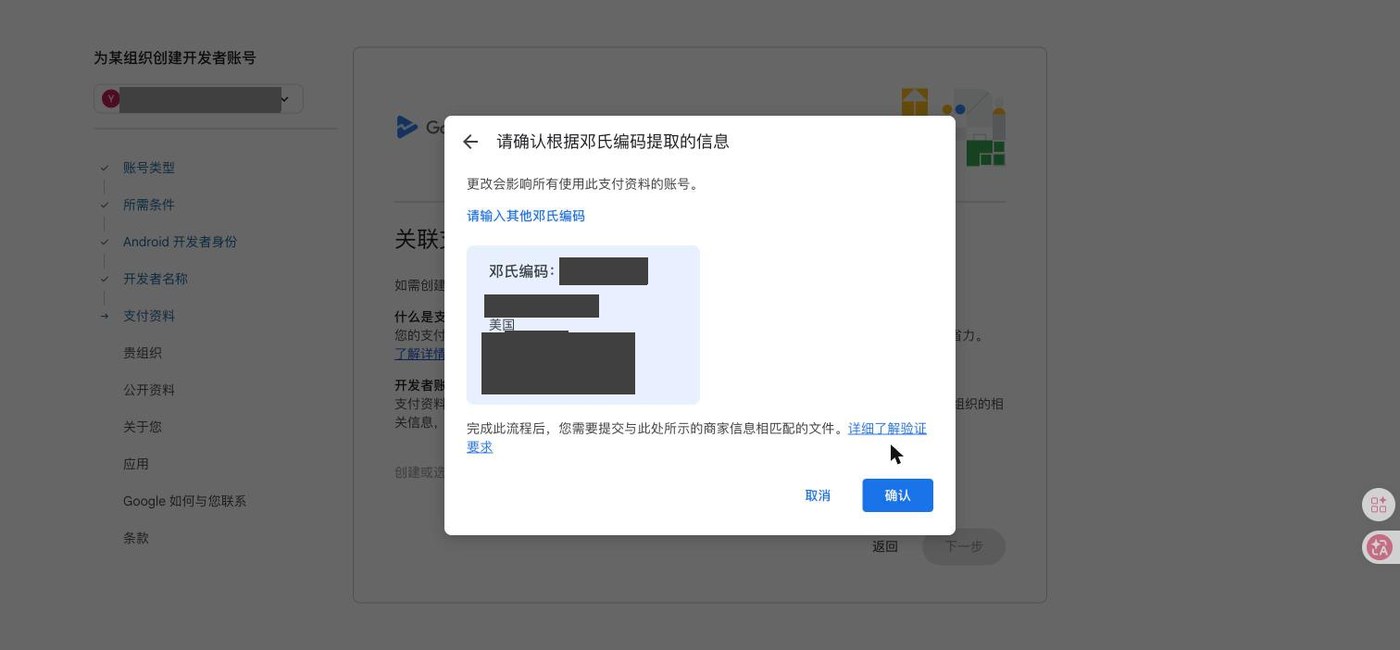
Payments profile: after you enter the D-U-N-S number, a dialog shows the company name and address registered with Dun & Bradstreet. Check them before you click Confirm.
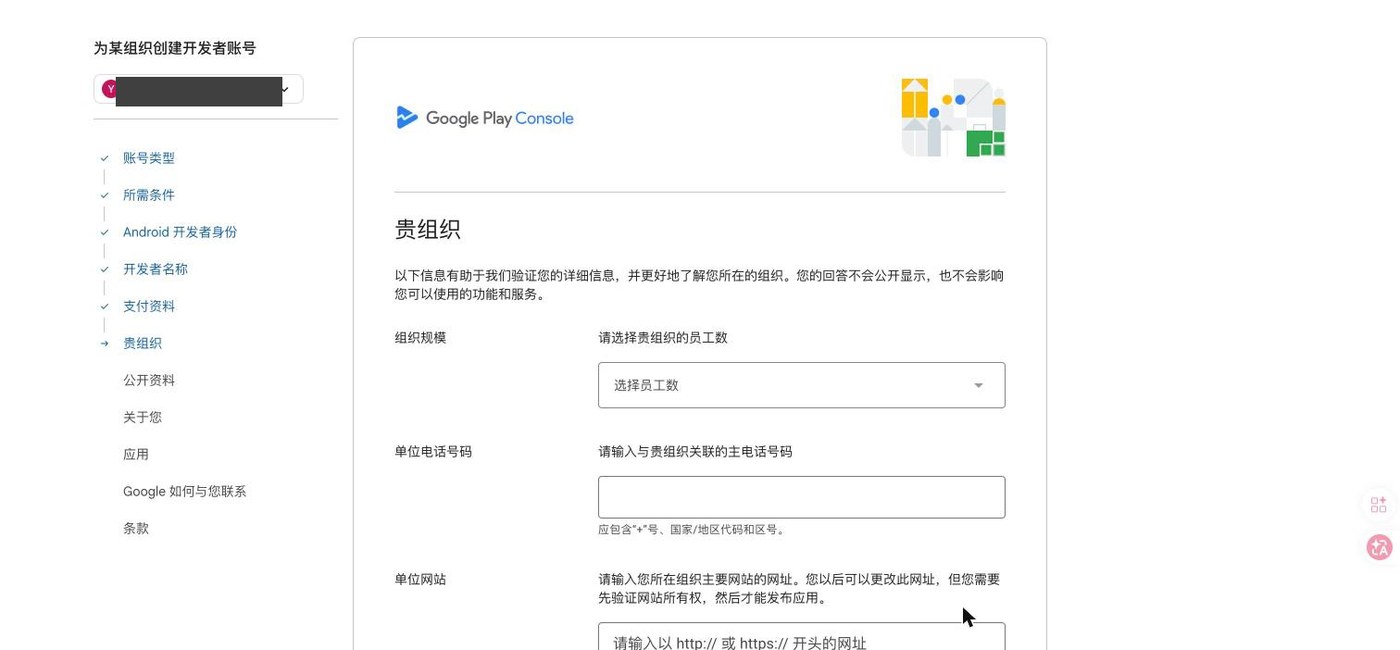
Your organization: number of employees, organization phone number, website. Don't put spaces in the phone number.
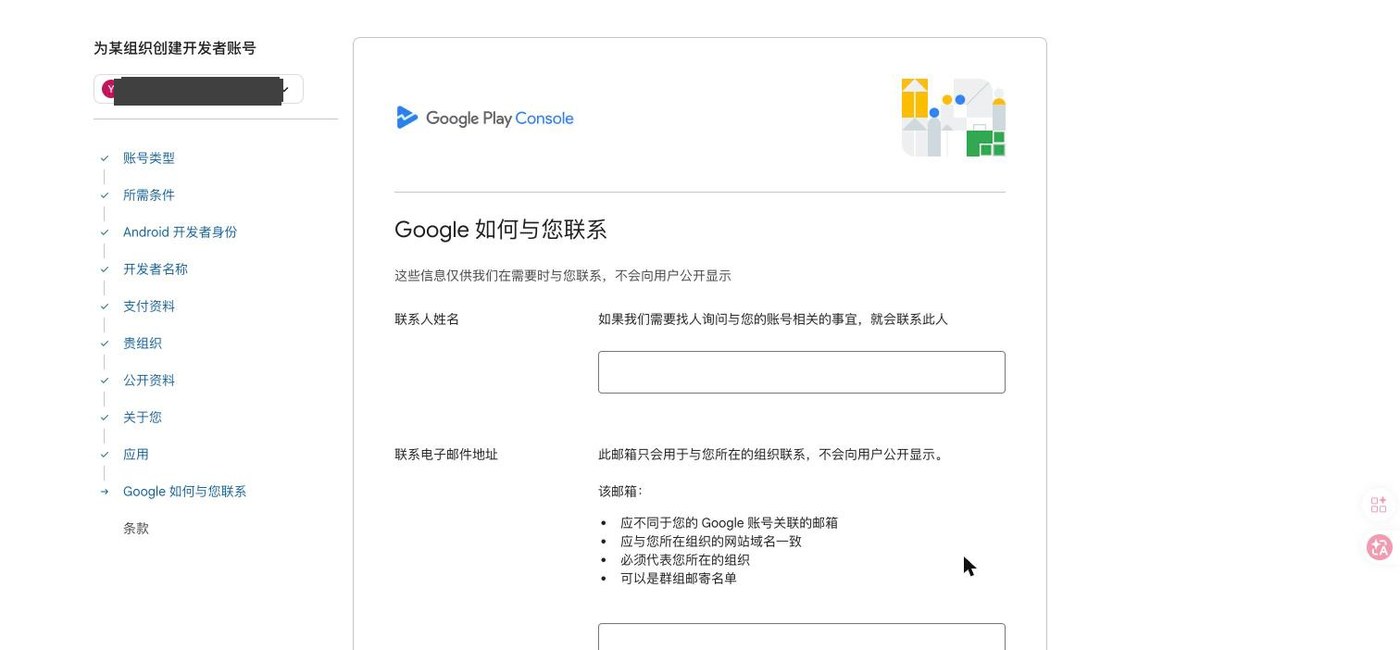
The four requirements for the contact email. The one people trip over most is the first: it can't be the same as the sign-in email.
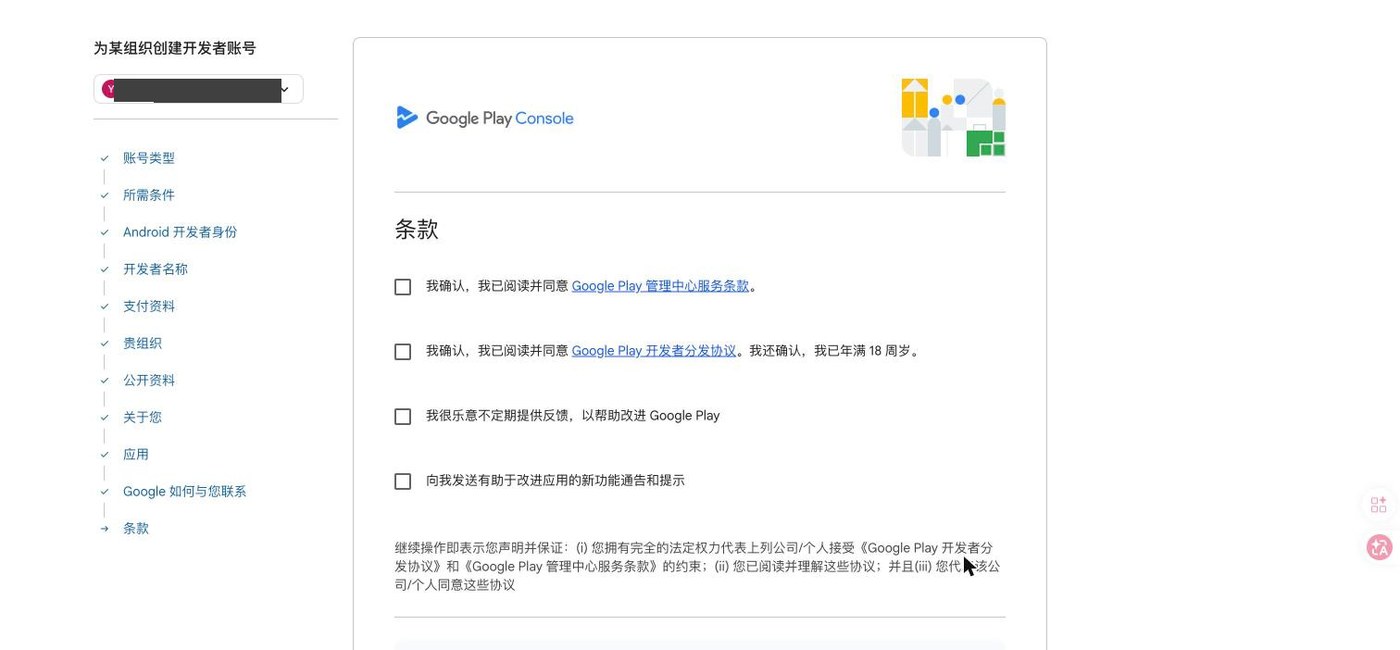
The Terms page: you must tick the first two agreements. The last two are marketing subscriptions, which you can leave unticked.
I paid the $25 with my personal credit card and booked it in the company's accounts as an advance from the owner.
Once you've paid, the developer account is created and the receipt goes to the sign-in email.
Step 3: Identity and Organization Verification
After payment, the home page lists three tasks: verify your identity, verify your website, and verify your phone number.
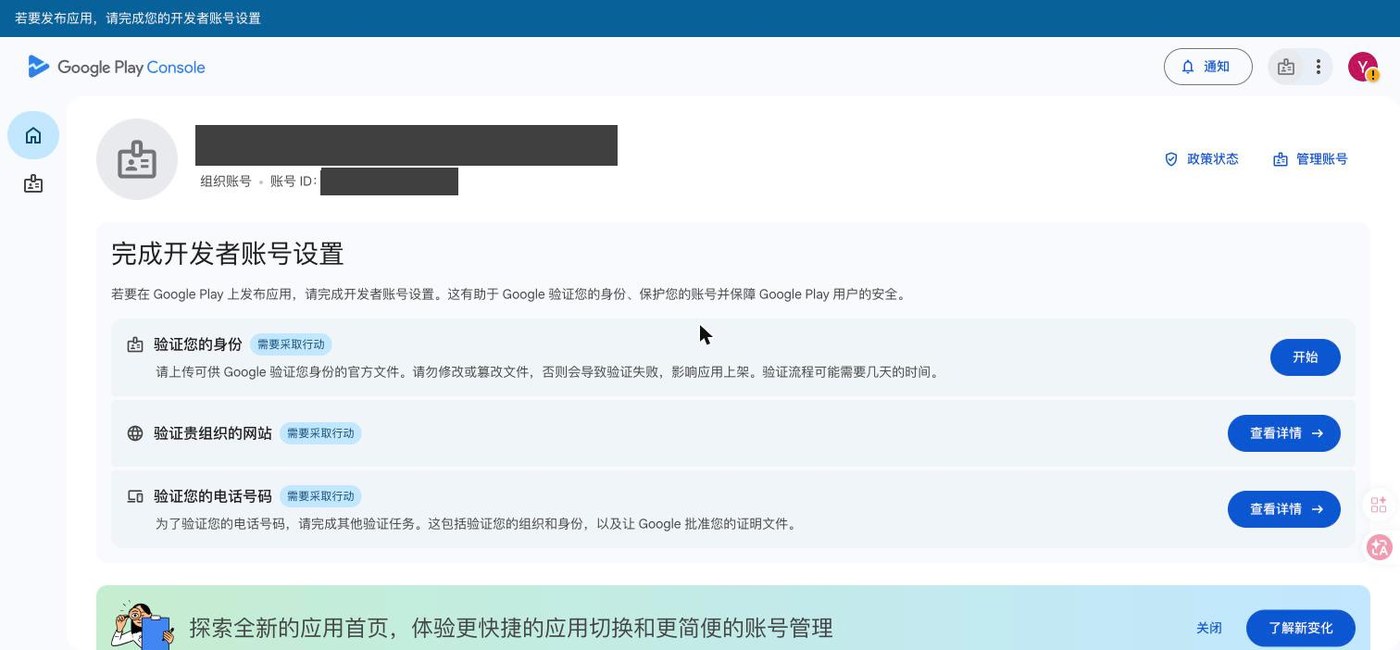
The Play Console home page. The redacted parts are the company name and the account ID.
Identity verification has two parts.
For the organization part, upload a document that shows the company's registration details. The first type Google lists is an IRS letter (such as a CP 575); I uploaded my 147C EIN confirmation letter. The document must not be altered.
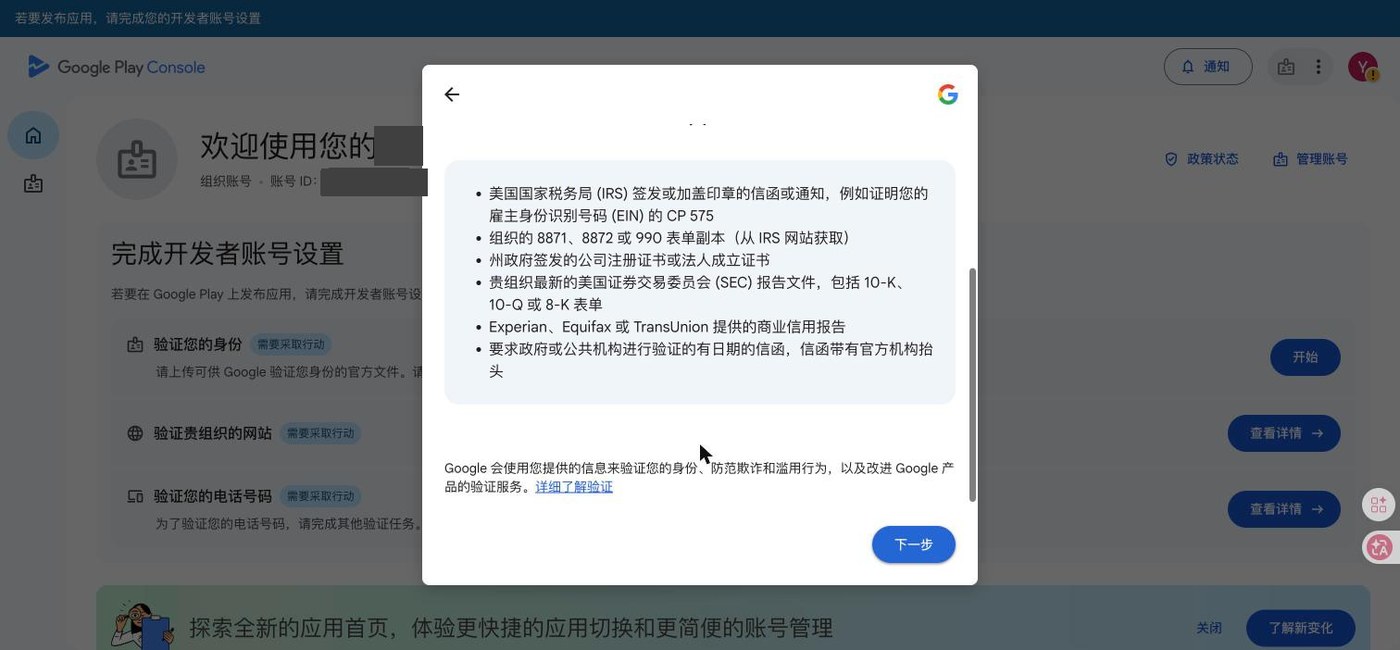
Documents accepted for organization verification. I submitted the IRS 147C, and it's still under review.
The authorized representative part verifies you personally:
- By default, Google has you scan a QR code and continue on your phone. The proxy on my phone (needed to reach Google from mainland China) wasn't set up properly and kept failing to connect, so in the end I chose "Continue on this device" and finished on my computer.
- The issuing country defaults to the United States. Change it to China and choose Passport as the document type.
- The first time, I uploaded an old scan I'd used for a visa application, with two passport pages on one A4 sheet. After I submitted, I got "There is 1 issue with the verification information" and was sent back to redo it. I took a new photo of the passport data page with my phone, and that submission went through.
- Finally, enter your own home address.
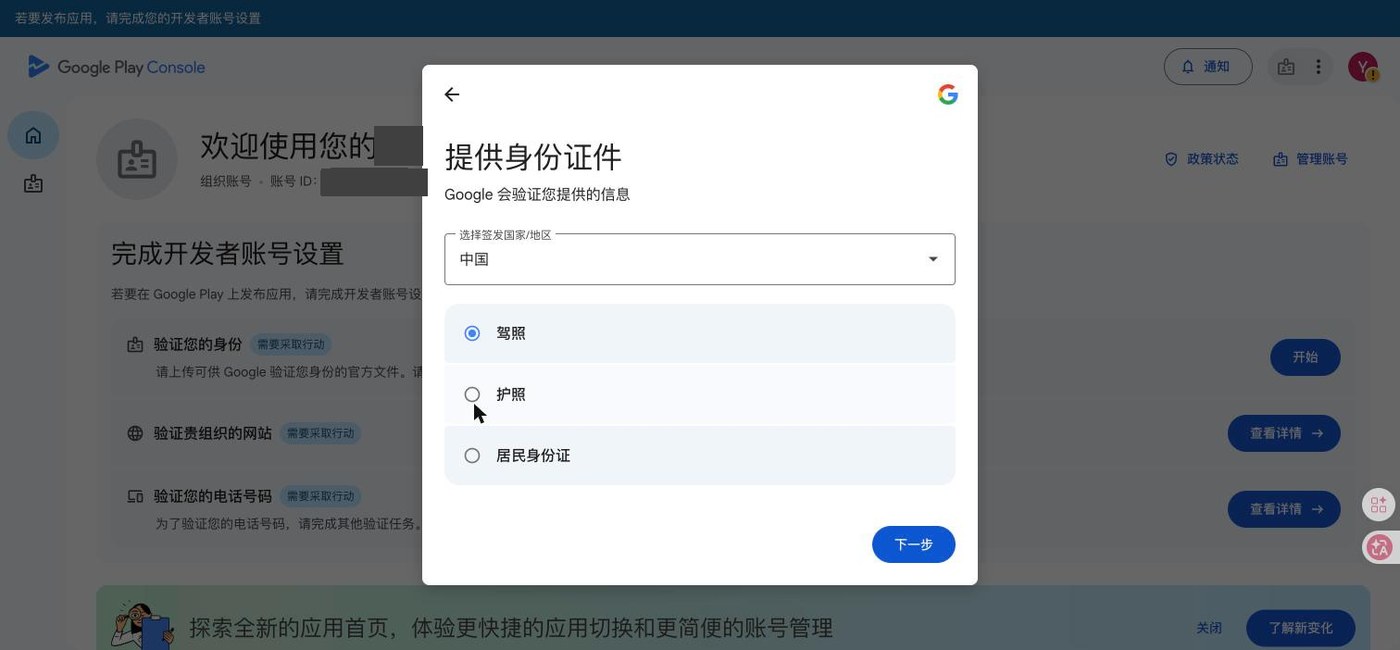
Change the issuing country to China. Driver's license is selected by default, so switch to Passport.
Two more small practical traps:
- The verification window is a separate frame embedded in the page. The easiest way to upload a file is to drag it straight in from Finder.
- The country lists are long and oddly sorted. In the list for the ID's country, "China" is at the top; in the list for the address country, "China" is at the very bottom.
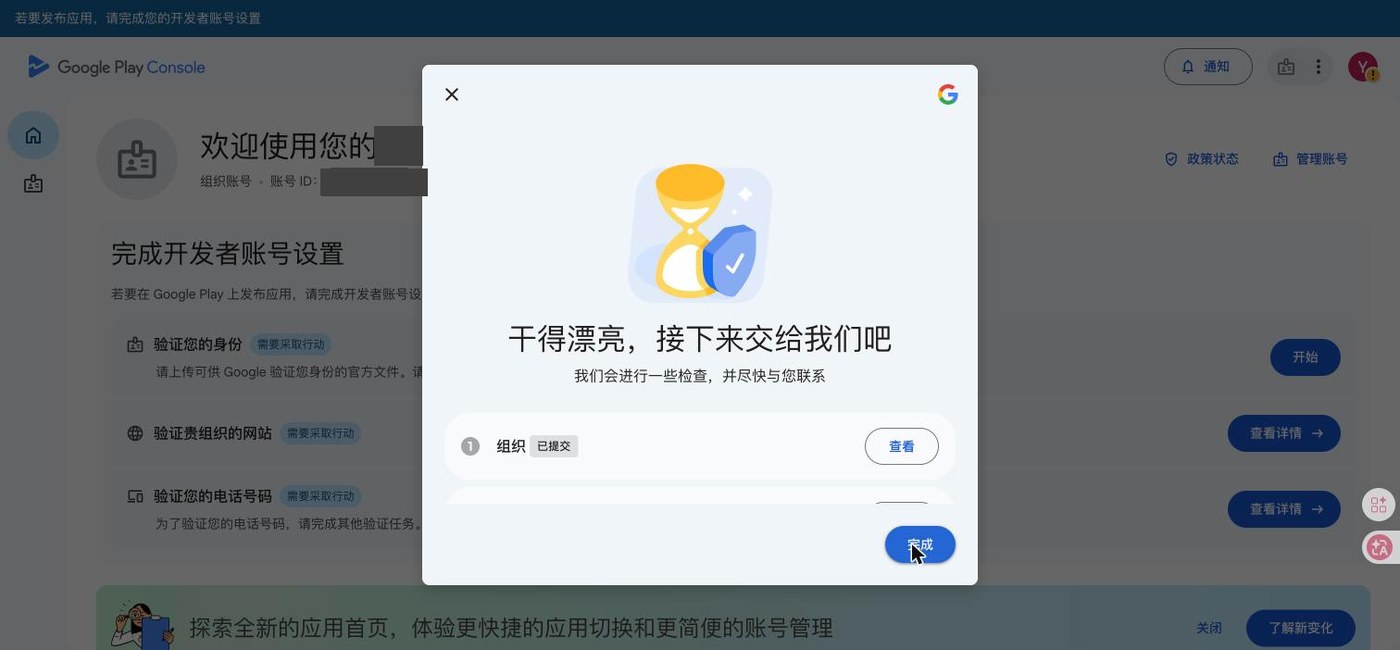
This page appears once everything is submitted. All that's left is to wait.
Step 4: Verify the Website
Play Console wants you to prove the website is yours:
- Open Search Console with the same company Google Account, add a "Domain" property, and enter your domain.
- It gives you a TXT record. If your domain is on Cloudflare, it suggests one-click verification by "authorizing Google to access your Cloudflare account". I switched to "Any DNS provider" and added the TXT record in Cloudflare myself, which meant granting one less permission.
- Go back to Search Console and click "Verify". It passes.
- Go back to "Account details" in Play Console and click "Send verification request" next to the organization website. Since you are the Search Console owner yourself, it immediately shows "Website verified".
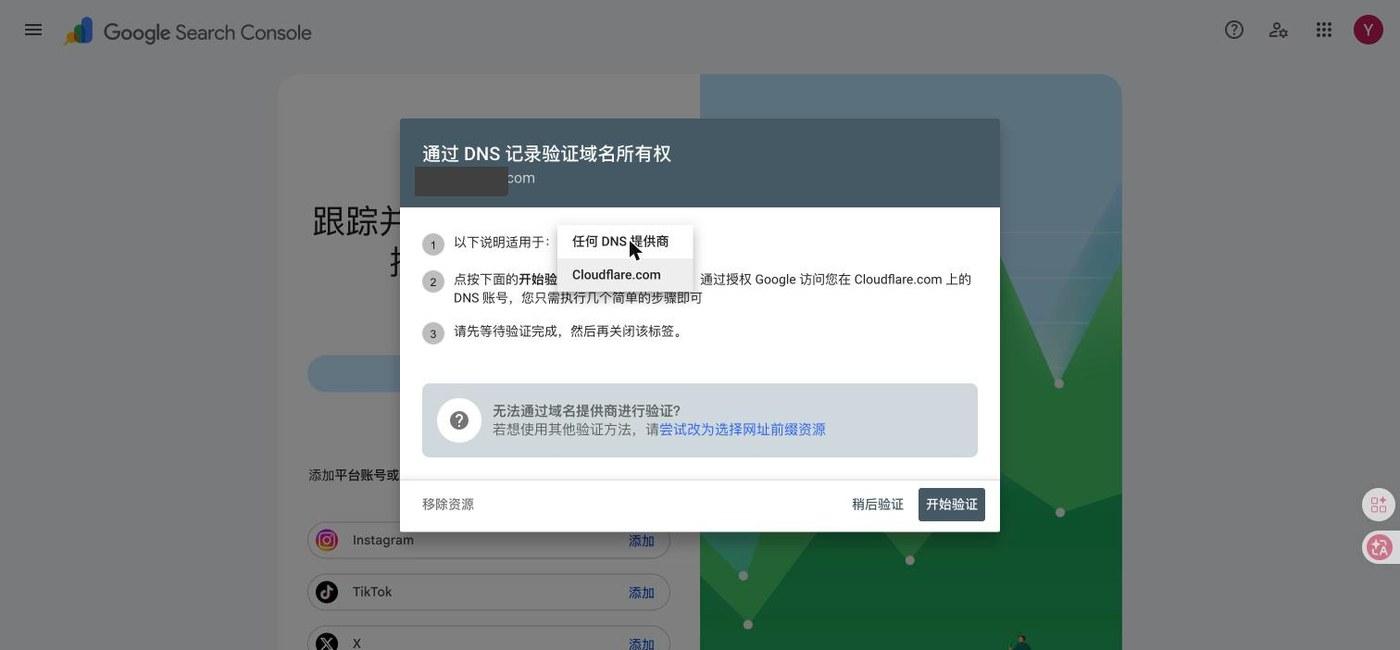
Search Console detects that the domain is on Cloudflare. Switch the dropdown to "Any DNS provider" and it gives you the TXT record to add yourself.
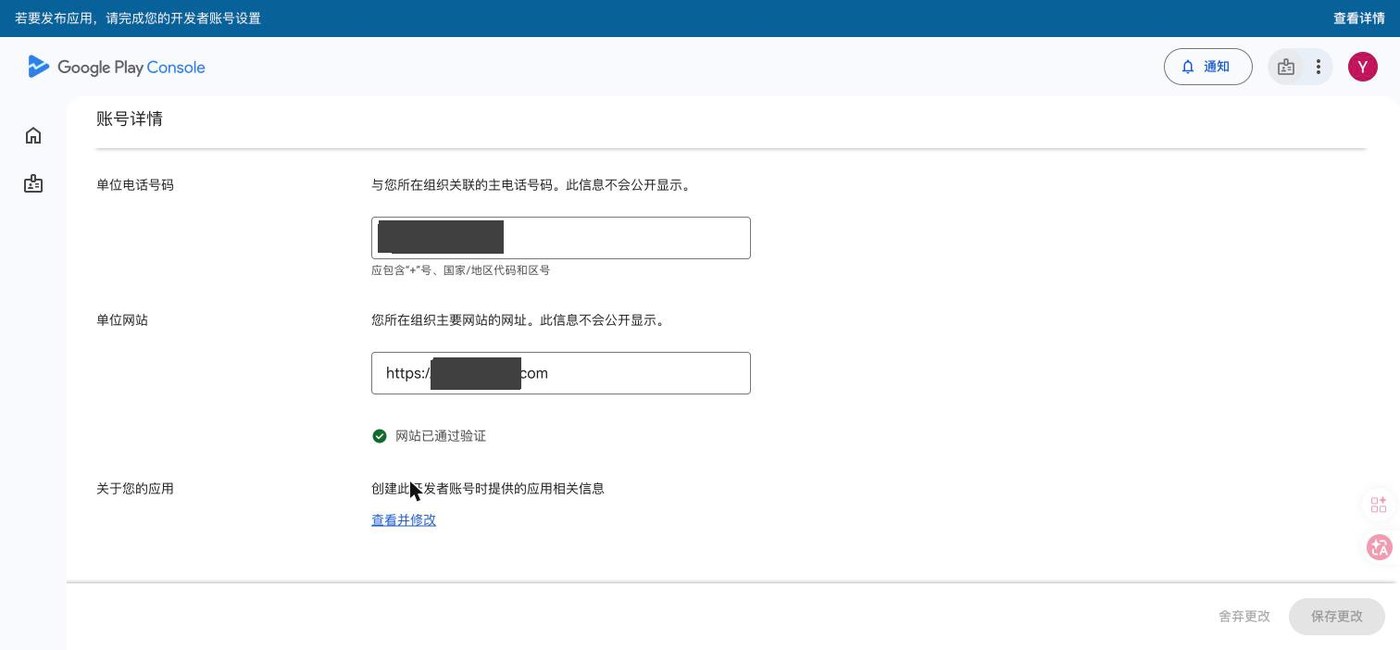
Back in Account details in Play Console, "Website verified" appears under the organization website.
Don't delete this TXT record. If you delete it, the verification is no longer valid.
Step 5: Verify the Phone Number
This only becomes available after the organization and identity reviews are approved. I'm still waiting and will add this section once they pass.
Pitfalls I Hit in This Part
- The Play Console signup page defaulted to the personal Gmail account signed in to the browser.
- Choosing "For work or my business" when creating the Google Account takes you into the paid Workspace signup.
- My +86 number was rejected when I created the Google Account.
- The contact email can't be the same as the sign-in email, so I quickly added a dev@ forward in Cloudflare.
- Spaces in the phone number cause a format error.
- The old passport scan was rejected, and a freshly taken photo passed.
4. Apple Organization Developer Account
With an Apple organization developer account, the App Store shows the company name as the seller. The annual fee is $99; in the app I saw $98.99/year. As with Google, you need a D-U-N-S number.
I submitted on the evening of Oct 30, and a minute later Apple emailed asking for more documents. A few minutes after I sent them, Apple replied that it had received them. I'm now waiting for the review.
What to Prepare
- A D-U-N-S number that Apple can already find
- An Apple Account just for the company, with two-factor authentication on
- A company domain email
- A website
- Authority to sign agreements on the company's behalf (being an owner or founder is enough)
- Company documents: the formation document, operating agreement and EIN confirmation letter, plus your passport
Step 1: Create an Apple Account Just for the Company
Create a new account on the account.apple.com website. Don't use your personal Apple ID.
- Enter your name in pinyin (the romanized spelling) as it appears on your passport, for example San Zhang. Apple requires both first and last name to be your legal name.
- Use the company domain email.
- Country or region: I chose mainland China, to match my passport and phone number. For what that choice leads to, see Step 3.
- Your phone number receives the verification code, and once registration is done, two-factor authentication is already on.
- Only sign in to this account on the web and in the Apple Developer app. Don't sign in to it in your iPhone's or Mac's system settings, so it doesn't get mixed up with your personal iCloud.
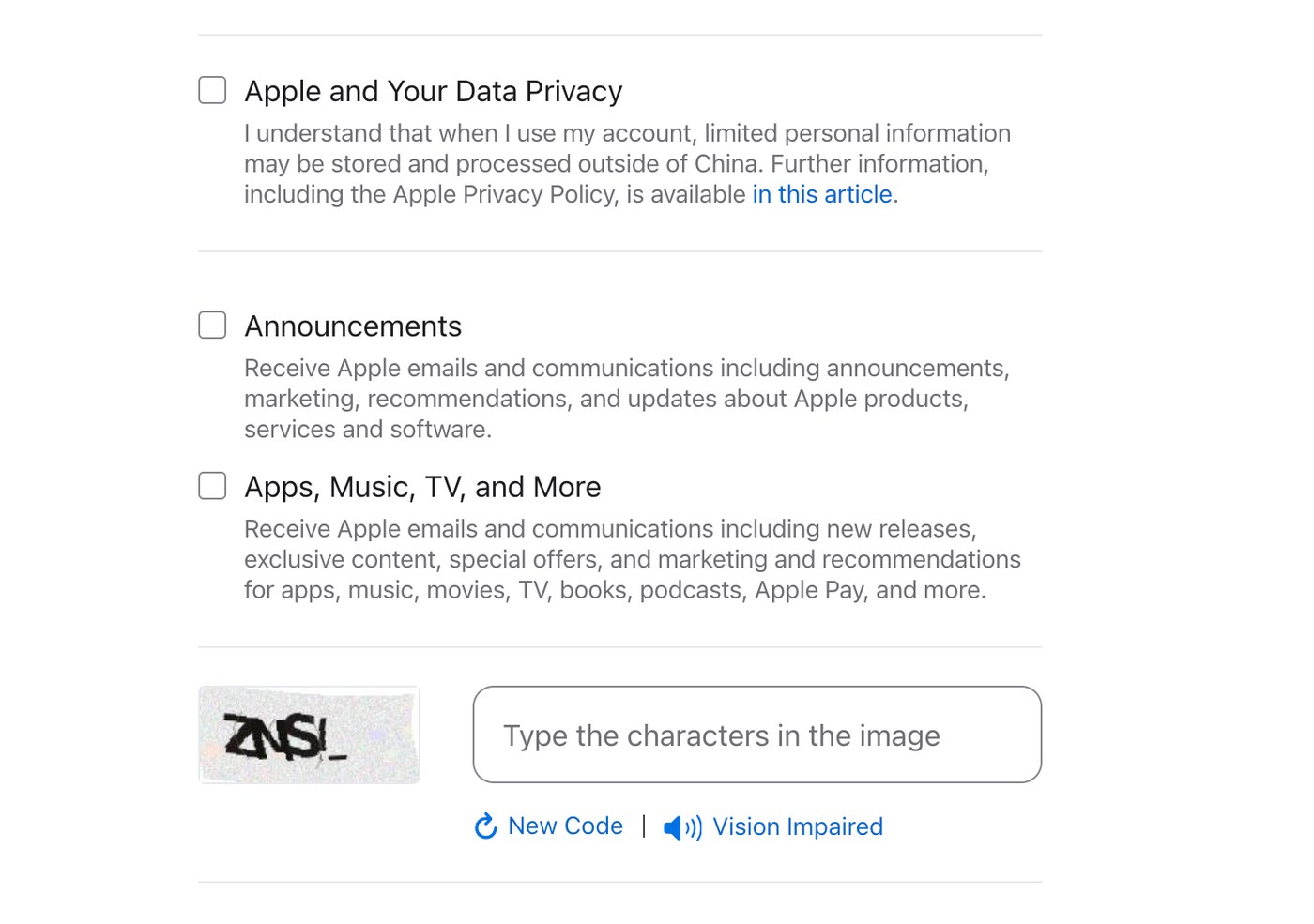
The signup page ends with a data privacy notice, two marketing subscriptions and an image CAPTCHA. You can leave the marketing subscriptions unticked; type the CAPTCHA yourself.
I recommend adding a second trusted phone number under "Account Security", so you won't be locked out if you change numbers later.
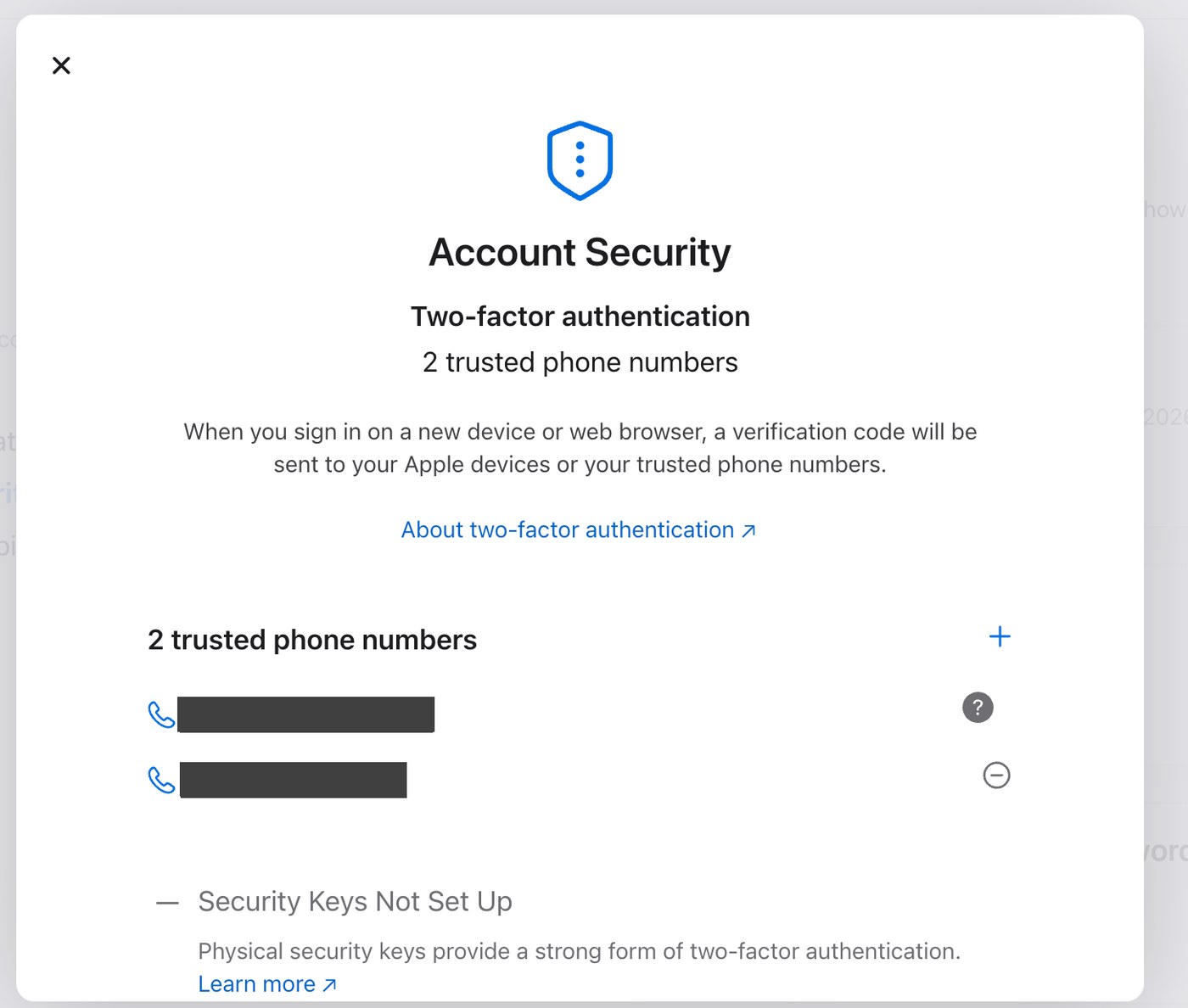
A second trusted number added.
Step 2: Make Sure Apple Can Find Your D-U-N-S Number
Once you have the number, look it up first at developer.apple.com/enroll/duns-lookup; mine only showed up two days later. When your company can be found, Apple sends the number to the email you entered, which means you're ready to enroll. The lookup form ends with an image CAPTCHA that you have to type in yourself.
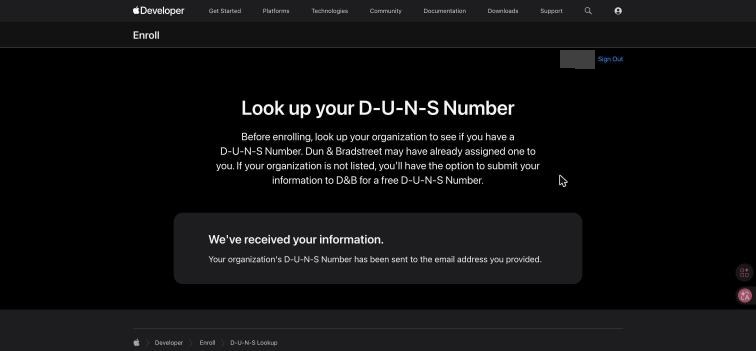
This page appears once your company is found. The number is sent to the email you entered.
Step 3: Enroll on the Web or in the App?
I signed in to the developer website with the company account and accepted the developer agreement. When I opened the enrollment page, all it showed was one line, "Enroll with the Apple Developer app." The website had no way to apply. Apple's Chinese-language help page also says that organizations enroll in the app on an iPhone or iPad, and that the whole process has to be done on the same device.
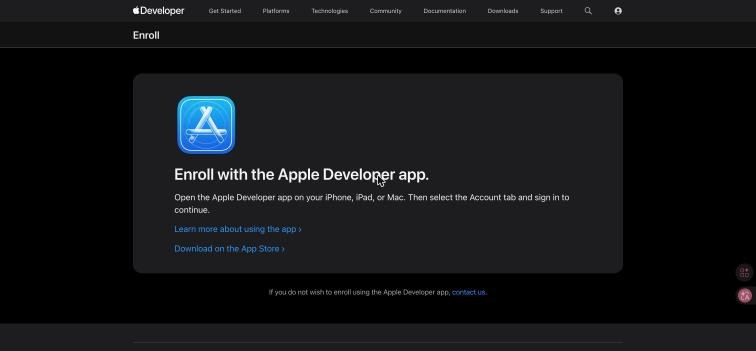
With my account, the enrollment page showed only this line.
So:
- Install the Apple Developer app on your iPhone.
- Tap Account and sign in with the company Apple Account. This only signs in to the app; you don't need to change the Apple ID on the phone itself.
- Tap Enroll Now.
Step 4: The Enrollment Form in the App
Your personal details: because the account region is mainland China, this step asks for your name in Chinese characters and your Chinese national ID number, then a selfie for face verification, the same real-name verification that apps in China require. It verifies you as a person and has nothing to do with the company name.
Address: the province list is in Chinese. Enter your own home address.
Entity Type: choose Organization. Don't choose Individual: if you do, the store shows your personal name as the seller.
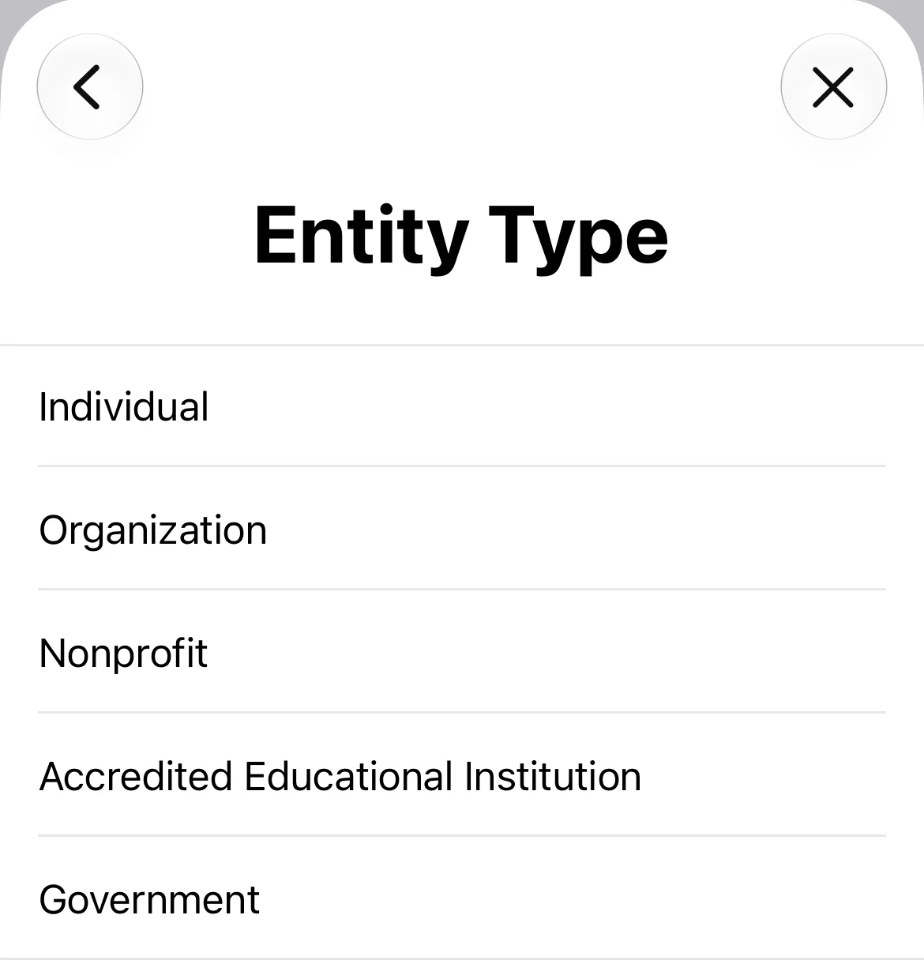
For Entity Type, choose Organization.
Company information:
| Field | What to enter |
|---|---|
| Legal name | Exactly as on the formation document, including LLC |
| D-U-N-S | The nine-digit number |
| Headquarters address and phone | The same as registered with Dun & Bradstreet |
| Website | The company website |
| Job Title | I entered Owner |
| Work Email | The company domain email |
Signing Authority: turn this toggle on to confirm that you have the authority to sign agreements on the company's behalf. Below it, you also enter someone who can verify your signing authority; for a one-person company, that's you. This page held me up for a while: Continue stayed grayed out, and the reason was that this toggle was off.
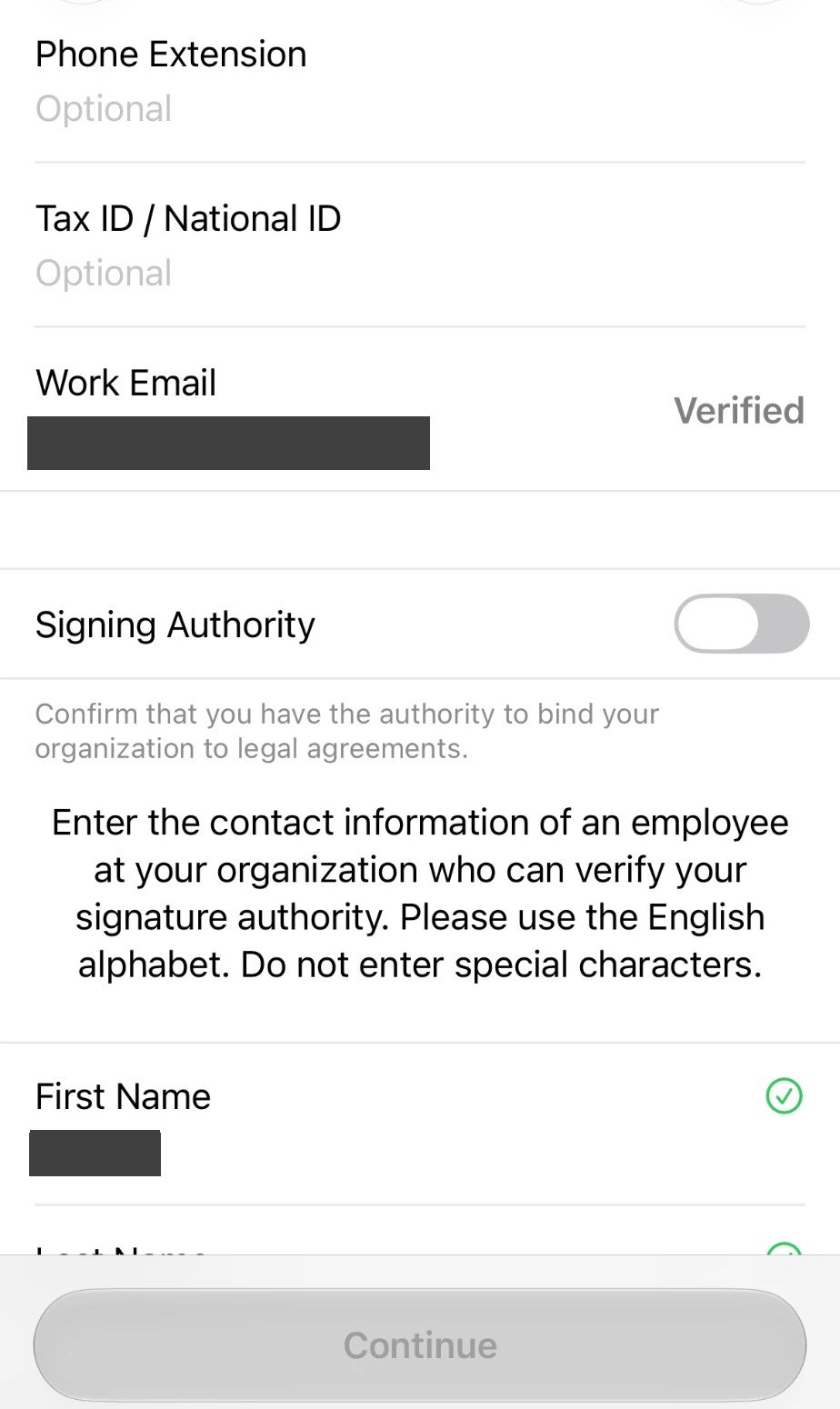
The toggle is off, so the Continue button at the bottom is grayed out.
After you submit, an Enrollment ID appears. Write it down; you'll need it whenever you contact Apple later.
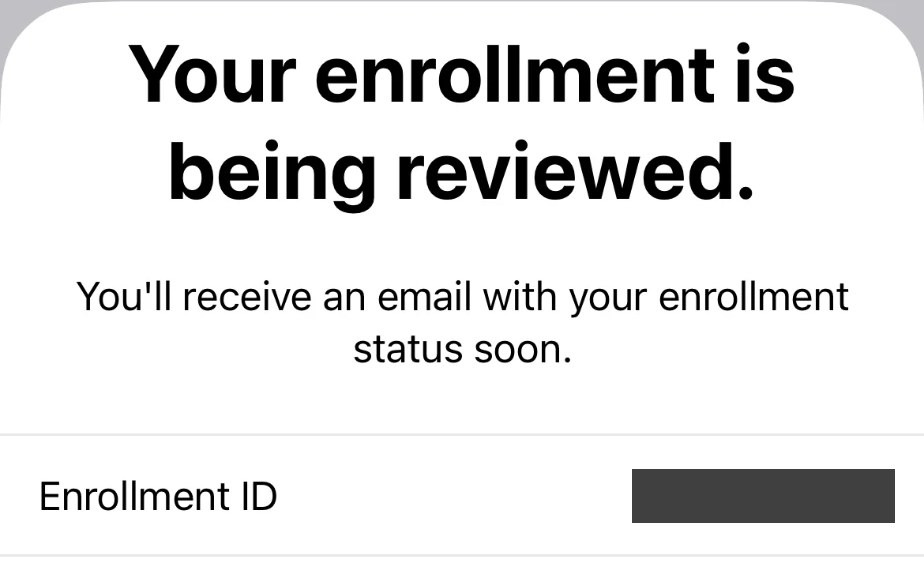
Submitted. The Enrollment ID is redacted.
Step 5: Send Additional Documents
A minute after I submitted, Apple emailed to say it couldn't verify my identity or my relationship to the company, and asked for three things:
- A photo ID of yourself. The upload page says that if your ID doesn't show your name in pinyin or English, you need to attach an English translation certified by a lawyer. So use your passport, and don't use your Chinese ID card.
- Proof of your relationship to the company (the original wording is "employment verification"). A one-person company has no employment contract, so I sent the operating agreement (stating that I'm the sole member with 100% ownership), the initial resolutions issued by the registered agent (handing the company over to me), and the IRS EIN confirmation letter (addressed to me as sole member).
- One company document. I sent the Articles of Organization filed with the state.
The upload link is in the email: developer.apple.com/contact/file-upload/. The rules:
- Only JPG, PNG, TIFF and PDF are accepted, and each file must be 5MB or smaller.
- You choose one file at a time; to upload more, click "Add another file".
- The Notes field allows up to 200 characters. If you go over, the Continue button stays grayed out.
- When you click submit, a pop-up warns you that you can't add more files after submitting.
I combined my passport and these documents into a single 13-page PDF of about 1MB, explained in the notes which pages were which, and submitted everything at once. A few minutes later Apple replied that the documents had been received and that they would contact me after the review.
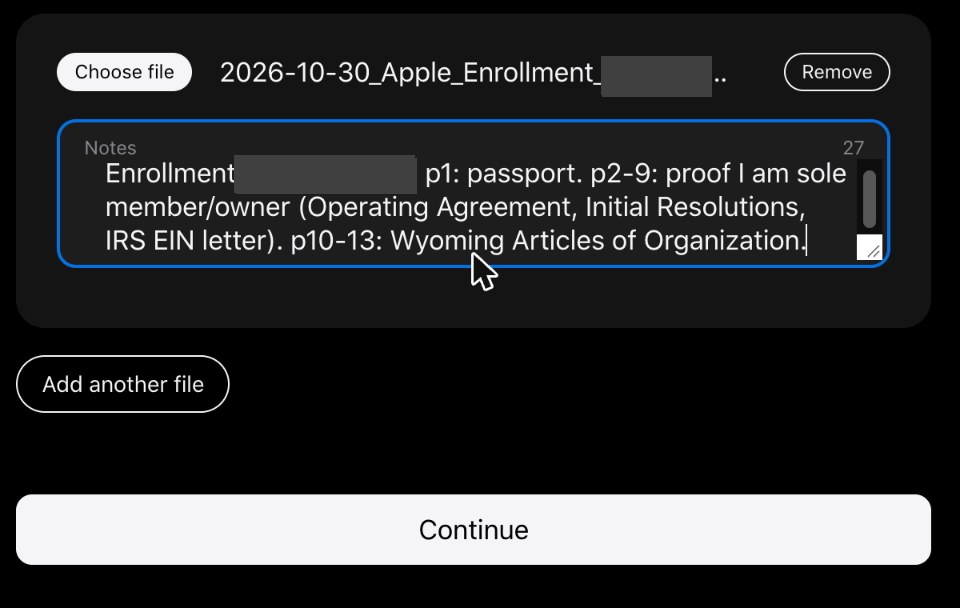
Everything in one PDF, with the notes listing what each page range contains. The 27 in the top right corner is the number of characters left.
Step 6: Pay After Approval
Apple emails you once the review is approved. Then go back to the app on the same iPhone, tap Account, then Continue Your Enrollment, accept the license agreement, and subscribe. The fee is charged to the payment method linked to the Apple ID signed in on that phone (your personal one), and it renews automatically every year after that. Keep the receipt and book it in the company's accounts as an advance from the owner.
I'm still waiting for the review result and will update this when there's progress.
Pitfalls I Hit in This Part
- I set the account region to mainland China, and as a result I could only enroll through the app, with real-name verification using my Chinese ID card. I haven't tried a US region, so I can't say whether it would be different.
- Dun & Bradstreet recorded my company type as Corporation, though it's actually an LLC. So far Apple hasn't held me up over it. If it does, contact Dun & Bradstreet to correct it, then wait again for the change to sync to Apple.
- With the Signing Authority toggle off, Continue stayed grayed out.
- The notes for the additional documents allow only 200 characters, and anything longer can't be submitted.
Total Cost
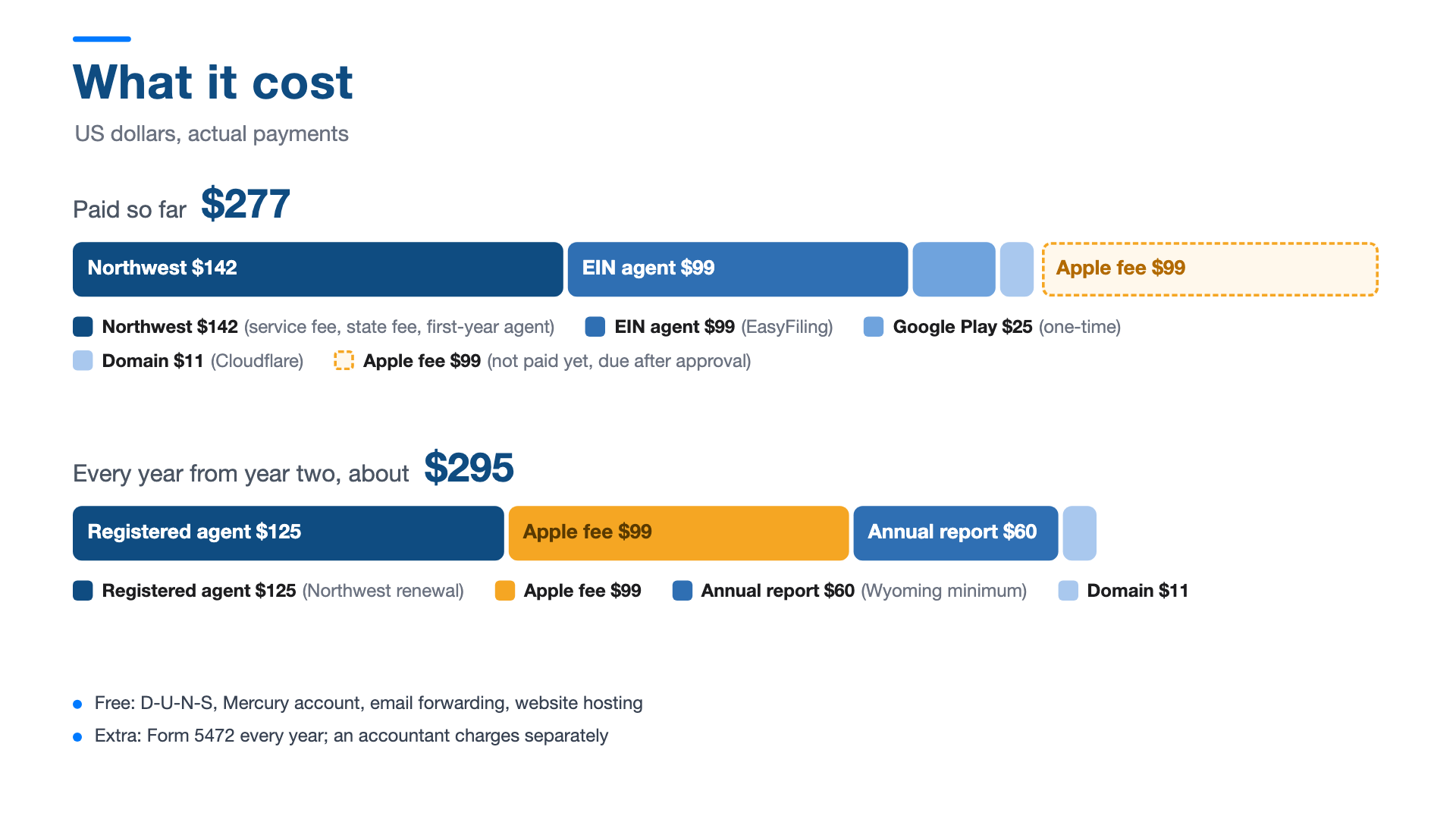
| Item | Amount | Notes |
|---|---|---|
| Northwest: service fee + state fee + first-year registered agent | $142 | Agent fee is $125/year from the second year |
| EIN filing service | $99 | You can save this by calling the IRS yourself |
| Domain | About $11/year | Cloudflare |
| Google Play registration fee | $25 | One-time |
| Apple Developer annual fee | $99/year | Shown as $98.99 in the app; paid after approval |
| D-U-N-S, Mercury account, email forwarding, website hosting | Free |
So far I've actually paid about $277; Apple's annual fee isn't paid yet. From the second year on, the fixed yearly costs are $125 for the registered agent, at least $60 for the state annual report, about $11 for the domain and $99 for Apple's annual fee, about $295 in total. Form 5472 also has to be filed every year, and having an accountant file it costs extra.
Once Apple and Google finish their reviews, I'll add the two missing sections: Google's phone verification and Apple's payment.
Related on this site
Subscribe to Newsletter, get the full playbook free
Subscribe to receive the complete "AIP Overseas Social Media Playbook" plus weekly AI curated content
Related Posts
Getting Paid Internationally for $168: Hands-On Notes on a US LLC + Mercury + Stripe (via XuanTong)
2026-10-07
Going GlobalIndie Developer's Guide to Going Global: US Company + EIN + Stripe + Bank for $193
2025-07-21
Going GlobalComplete Payment Setup for Global Websites: US Company Registration, EIN Application, Bank Account Opening, and Stripe Activation
2025-06-07
Jason Zhu
Ex-AI Engineer | AI Blogger