
How to Turn a Video Into a Live Photo on iPhone (4 Ways, 2026)
Short answer: the iPhone can't do it on its own. The Photos app only goes one way — it turns a Live Photo into a video, not a video into a Live Photo. To make a Live Photo from a video you need one of these:
| Your video is… | Fastest way |
|---|---|
| On TikTok | Share → Live Photo inside TikTok (method 1) |
| In your Camera Roll (MP4 / MOV) | A video-to-Live-Photo app such as intoLive (method 2) |
| On a computer, or you don't want to install anything | An online video to Live Photo converter (method 3) |
| On an Android phone | Android uses Motion Photos, not Live Photos (method 4) |
Most people want this for one reason: a moving Lock Screen wallpaper. That part is covered at the end.
What a Live Photo actually is (and why a plain video won't do)
A Live Photo is not a short video. It is a still photo plus a short clip, stored as a pair — the camera records what happens 1.5 seconds before and after you take the picture, so about three seconds of motion around one key photo.
That's why you can't just rename an MP4. A converter has to:
- Trim your video to a few seconds,
- Pick a key frame to be the still photo,
- Save both parts as a linked pair in your Photos library.
Every method below does those three steps for you. The differences are where the video comes from and how much control you get over the trim and the key frame.
Method 1: Turn a TikTok video into a Live Photo (no extra app)
TikTok has this built in on iPhone. Tested on an iPhone in October 2026:
- Open the video in TikTok.
- Tap Share (the arrow on the right).
- The share sheet has three rows: people to send to, apps (Repost, Copy link, X, WhatsApp…), and actions. In the bottom row of actions, next to Download, tap Live Photo (the round icon; 动态照片 if your TikTok is in Chinese). Swipe the row sideways if it's off screen.
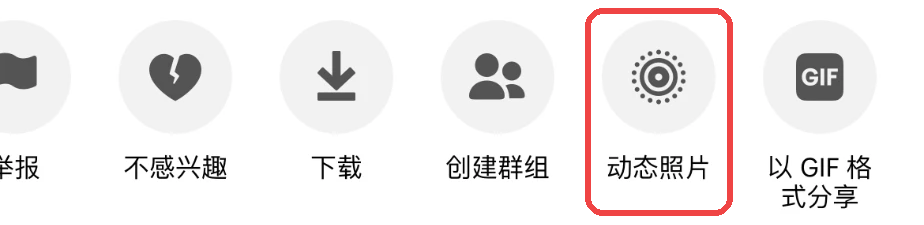
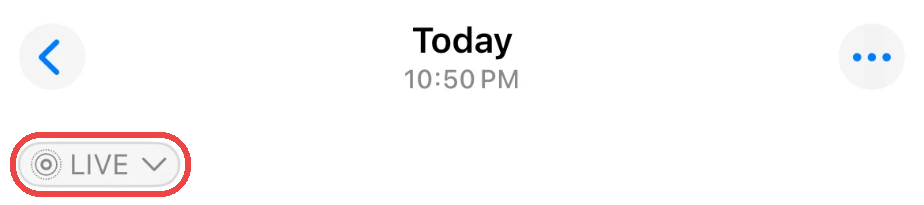
- A few seconds later it's in your Photos app. Open it and you'll see the LIVE badge in the top-left corner: it's a real Live Photo, ready to set as wallpaper.
Two things to know:
- It keeps TikTok's watermark. The TikTok logo stays in the corner of the Live Photo, and it will show on your Lock Screen too. If you need a clean one, use a video you have without the watermark and method 2.

- If you don't see Live Photo: the creator has turned off downloads for that video. The option only appears on videos that can be downloaded.
This is the quickest way to make a TikTok video a Live Photo or a live wallpaper, but it only works for TikTok videos — not for clips you shot yourself.
Method 2: Use a video to Live Photo app (videos already on your iPhone)
For a video in your Camera Roll — an MP4 you downloaded, a screen recording, a clip you filmed — a converter app is the easiest route. intoLive is the best-known; VideoToLive and other "video to live wallpaper" apps on the App Store work the same way.
The steps in intoLive:
- Open intoLive and choose the video.
- Trim it to the part you want. Keep it short — the result plays for only a few seconds.
- Choose the key photo (the frame shown when the photo isn't playing).
- Tap Make, then Save as Live Photo.
Things to know before you pick an app:
- Free versions are limited. Expect a watermark, a cap on video length, or both; the paid version removes them. Check the current limits on the App Store page, they change.
- Shorter, steadier clips work best, especially for wallpaper (see troubleshooting below).
- The app needs access to your Photos library to save the pair.
This is also the answer to "how to make a video in a Live Photo on iPhone without TikTok": an app like this is the only on-device way.
What intoLive users run into (2,056 App Store reviews)
intoLive is rated 4.6 from about 114,000 ratings in the US App Store, so most people get what they came for: the happy reviews say it's "really quick and easy". But I read 2,056 written reviews from seven App Store regions (US, UK, Canada, Australia, Japan, mainland China, Taiwan; collected October 3, 2026). Of the 740 written since 2024, 386 are one or two stars — written reviews lean negative, but they show exactly where people get stuck. The recurring problems, and what to do about each:
| What users report | Share of 1–2★ reviews since 2024 | What to do |
|---|---|---|
| Charged after the free trial, refund refused; weekly plans renewing for weeks | 7% | Before the trial ends: Settings → your name → Subscriptions → intoLive → Cancel Subscription. Deleting the app does not cancel it. Already charged? Request a refund at reportaproblem.apple.com. |
| Export is slow, fails ("cannot open") or the app crashes | 18% | Keep the clip to a few seconds, free up storage, update the app; test on a short clip first. |
| The result isn't recognized as a Live Photo, or won't work as a wallpaper (reports from iOS 18.6 and iOS 26) | 8% | Check for the LIVE badge in Photos and try it as a wallpaper before paying. Reviews don't point to one setting that always works, so test your own clip first. |
| Free version: watermark, very short clips (1–2 s), 1080p cap, some clips sped up | about 5% each | That's the free tier. If you need it clean or longer, that's what the paid plan sells; if not, the TikTok route (method 1) costs nothing. |
| Previously bought it once, now asked to subscribe | 6% | Reviewers say the old purchase didn't carry over. Look for a restore option in the app's settings before paying again, and ask the developer or Apple if it isn't honored. |
| Ads, including one fake "your iPhone has 72 viruses" ad (Japan) | 13% | Don't tap through in-app ads; close them. |
In mainland China there's an extra trap: 17 reviews describe an in-app login or ad that asks for your phone number and an SMS code, and that code signs you up for a monthly carrier-billed package (one cites ¥25 a month). Never enter an SMS code inside the app.
In users' own words
(Excerpts from App Store reviews, with region, date and app version; Chinese and Japanese ones translated.)
- Charged after the trial: "Charged me $10 after I got a free trial." (US, 2026-09-30, v4.4.2); "Forgot to cancel after subscribing, and it charged me seven weeks in a row" (mainland China, 2026-08-18, v4.4.0)
- Export fails or crashes: "Says 'cannot open' when trying to save video as Live Photo." (US, 2026-08-12, v4.4.0); "I waited a whole hour and still haven't been able to export the live wallpaper" (US, 2026-06-07, v4.3.5); "It always crashes on export, right when it's almost done" (mainland China, 2024-10-30, v4.2.2)
- Won't work as a wallpaper: "My phone won't even recognize one of the wallpapers" (US, 2026-09-29, v4.4.1); "After updating to iOS 18.6.2, the exported Live Photo can't be used on the Lock Screen" (mainland China, 2025-08-28, v4.3.4); "Doesn't work on iOS 26, and doesn't move" (Japan, 2026-05-20, v4.3.5)
- Free-tier limits: "live photo is sped up for some reason… slaps their watermark on your export" (UK, 2026-08-19, v4.4.0); "Terrible, it only makes one second" (Taiwan, 2026-03-13, v4.3.5); "You can only make a Live Photo in 1080p maximum" (Australia, 2026-01-11, v4.3.5)
- Bought it once, now a subscription: "I paid ¥18 for it before, why do I have to pay again for a subscription?" (mainland China, 2026-09-26, v4.4.1)
- SMS-code carrier billing: "The page jumps straight to a carrier billing service, and entering the code charges you" (mainland China, 2026-09-15, v4.4.1)
- The happy ones: "Really quick and easy to do" (UK, 2026-09-23); "Downloads really aren't slow, and you don't have to pay to download" (Taiwan, 2026-08-24)
How the complaints changed over time
| Period | Written reviews | 1–2★ | Share |
|---|---|---|---|
| 2024, Jan–Jun | 131 | 43 | 33% |
| 2024, Jul–Dec | 201 | 136 | 68% |
| 2025, Jan–Jun | 117 | 57 | 49% |
| 2025, Jul–Dec | 112 | 61 | 54% |
| 2026, Jan–Jun | 116 | 59 | 51% |
| 2026, Jul–Sep | 63 | 30 | 48% |
- The late-2024 peak was one bad release. On October 2–4, 2024, mainland China got 55 negative reviews of version 4.2.0, 52 of them saying it crashed on launch, shortly after iOS 18 came out. Version 4.2.2 fixed the crash, and the complaints moved to one-to-two-second clips, the watermark and the paywall.
- Since 2025 about half the written reviews are negative, and the complaints have shifted from crashes to charges and to results that won't work as a wallpaper.
- Read the shares, not the counts. Apple's public review feed returns only the latest ~500 reviews per region, so each region covers a different stretch of time (mainland China from April 2024, the US from June 2025), and counts from different periods aren't comparable.
Bottom line: for a single TikTok clip, use method 1. If you use intoLive, run the free version on a short test clip, check that the result shows LIVE and works as a wallpaper, and if you do start a trial, set a reminder to cancel it.
Method 3: Use an online video to Live Photo converter
If you don't want to install an app, or your video is on a computer, there are free online converters. I tried two in October 2026 with a 5-second test clip, and neither hands you a finished Live Photo in the browser. They take one of two routes:
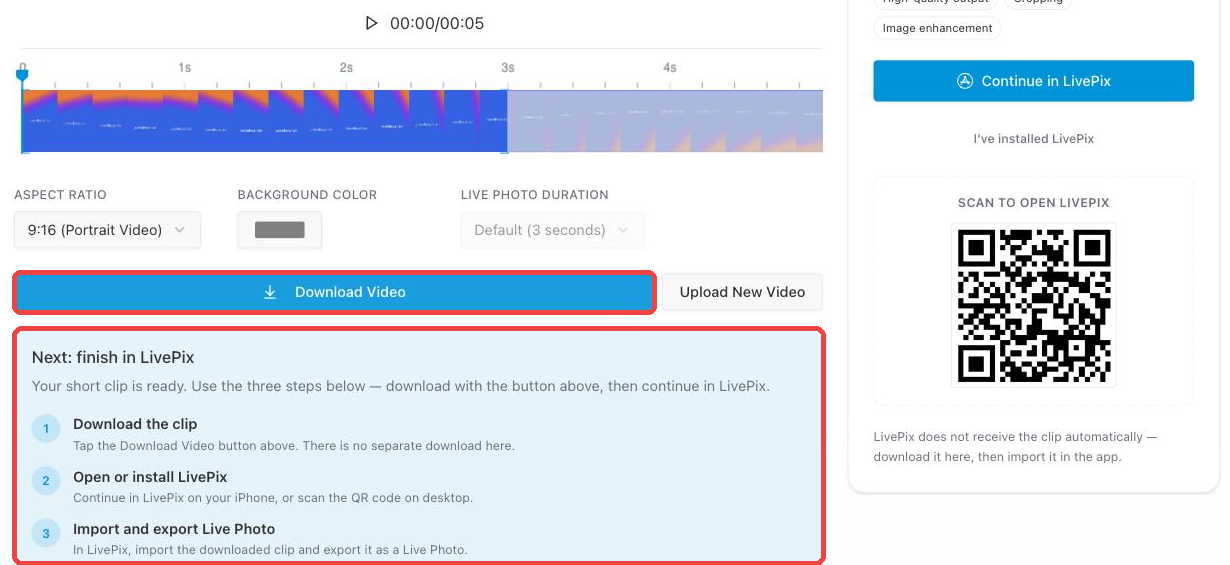
Route 1: the website trims, an app finishes. On livephoto.video you upload the video, keep a 3-second window (the duration can't be changed), pick the aspect ratio and background, and press Convert. What you download is a short video, and the page tells you to finish in its iPhone app, LivePix. Its own FAQ explains why: iOS only recognizes Live Photos that are packaged on the device.
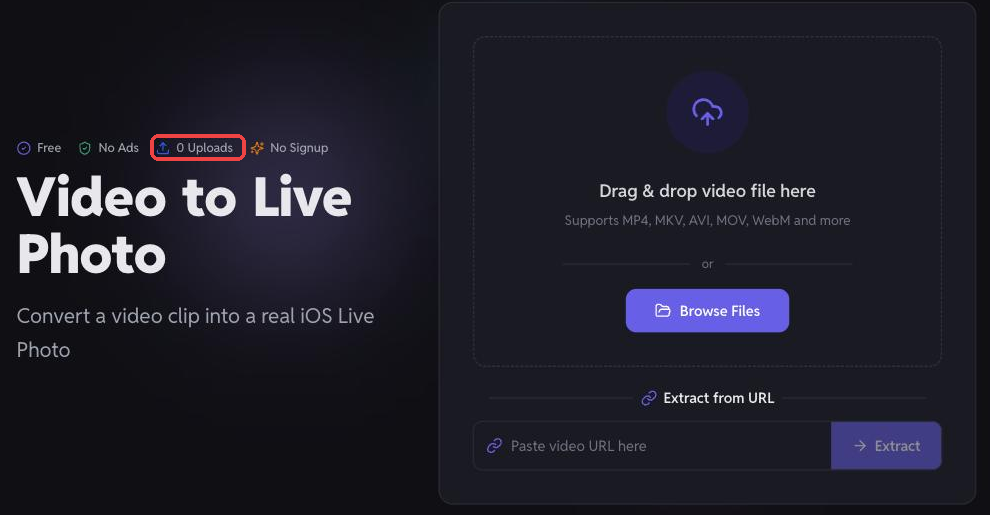
Route 2: the website builds the pair, you move it over. tools.video says it makes "a real iOS Live Photo" and processes the video in your browser ("0 Uploads"). According to its own instructions, you get a ZIP with IMG_0001.JPG and IMG_0001.MOV; you unzip it on a Mac and AirDrop both files together to your iPhone, where Photos shows the pair as one Live Photo. It allows clips of 0.5 to 6 seconds. In my test the page froze in Chrome after the upload, twice, so I couldn't confirm the last step.
What that means for you:
- An online converter alone rarely finishes the job on an iPhone. Expect either to install an app anyway (route 1) or to need a Mac and AirDrop (route 2). If you're on the iPhone already, method 2 is fewer steps.
- Send the JPG and the MOV together. Saved one by one (from Files or Safari), they stay a separate photo and video.
- Check where the video goes. Some converters upload it to their server; tools.video says it doesn't. Fine for a meme either way, but think twice with private footage.
- Clip length is capped: 3 seconds by default on livephoto.video, 0.5–6 seconds on tools.video.
Method 4: On Android, use Motion Photos instead
"Live Photo" is Apple's format. Android's equivalent is the Motion Photo (Google Pixel and Samsung phones both use it): one image file with a few seconds of video inside.
- Taking new ones: turn on Motion Photos in your camera app.
- From an existing video: there's no built-in "video to Motion Photo" button in Google Photos or Samsung Gallery; you need a third-party app.
- For a moving wallpaper: Android doesn't need a Live Photo at all — many launchers and wallpaper apps can use a video file directly as a live wallpaper.
How to set your Live Photo as a moving Lock Screen wallpaper
Once the Live Photo is in your Photos app:
- Open Settings → Wallpaper → Add New Wallpaper.
- Tap Photos and choose your Live Photo.
- Make sure the Live Photo (motion) button is on.
- Tap Add, then Set as Wallpaper Pair (or customize the Home Screen separately).
Apple's own walkthrough: Set a Live Photo as your Lock Screen wallpaper.
Important: the motion only plays on the Lock Screen. On the Home Screen the same photo is still.
If it doesn't move
- "Motion not available" / "This type of motion is not supported": iOS rejects some Live Photos as wallpaper. Commonly reported fixes are a shorter clip, less camera shake, and a different key frame — remake the Live Photo with a steadier few seconds and try again.
- It moved before but stopped: turn off Low Power Mode (Settings → Battery). Live wallpaper motion doesn't play while it's on.
- It's blurry or cropped: the Lock Screen is portrait; a landscape video gets cropped hard. Use a vertical clip.
Which method should you use?
- The video is on TikTok → Share → Live Photo. Thirty seconds, nothing to install (it keeps the TikTok logo).
- It's your own video on your iPhone → a converter app. Most control over the trim and the key frame.
- It's on your Mac → an online converter that gives you the JPG + MOV pair, then AirDrop both to the iPhone.
- You're on Android → Motion Photos, or skip the conversion and use the video as a live wallpaper directly.
FAQ
Can I turn a video into a Live Photo without an app?
Only if the video is on TikTok (Share → Live Photo). Online converters either send you to an app for the last step or need a Mac and AirDrop (method 3), and the iPhone Photos app itself can't do it — Apple only offers the reverse, Live Photo to video.
How long can a Live Photo be?
A Live Photo taken with the iPhone camera covers about 3 seconds (1.5 seconds before and after the shot). Converters trim your video to a few seconds for the same reason; a long video won't become a long Live Photo.
How do I make a video a live wallpaper on iPhone?
Turn the video into a Live Photo first (any method above), then set it in Settings → Wallpaper with the Live Photo button on. It will move on the Lock Screen only.
Why does my Live Photo wallpaper say motion is not supported?
iOS doesn't accept every Live Photo for wallpaper motion. Make a shorter, steadier version of the clip, try a different key frame, and check that Low Power Mode is off.
Can I convert an MP4 to a Live Photo?
Yes. MP4 and MOV are what converter apps and online converters accept. The converter does the trim and saves the still-plus-clip pair that the Photos app recognizes as a Live Photo.
Is there a Live Photo on Android?
Android's version is called a Motion Photo. It works the same way — a photo with a few seconds of video — but it's a different format, and you'll need a third-party app to make one from an existing video.
I saved a video from Instagram or YouTube. How do I make it my moving Lock Screen?
Use method 2: open the saved video in a converter app such as intoLive, trim it to the few seconds you want, save it as a Live Photo, then set it in Settings → Wallpaper with the Live Photo button on. Pick a vertical part of the video, since the Lock Screen crops landscape footage.
The TikTok video has no "Live Photo" button. What can I do?
The button is missing because the creator turned off downloads for that video, and TikTok respects that setting. There's no TikTok option to override it; pick a video that allows downloads, or use a clip you have the right to use.
Is there a free video to Live Photo converter without a watermark?
Some online converters are free and add no watermark, and converter apps usually let you try the free version first (often watermarked or length-limited). Limits change, so check before you convert: run a short test clip and look at the result in Photos before doing the one you care about.
Can I make a Live Photo longer than a few seconds?
No. A Live Photo is a short clip around one key photo, and converters trim to a few seconds for that reason. For a longer moving background, the iPhone Lock Screen has no option; Android can use a full video as a live wallpaper.
Is intoLive free? Does it add a watermark?
The download is free, and the free version works, but App Store reviewers report a watermark, very short clips (1–2 seconds) and a 1080p cap on it; removing those needs the paid plan, which starts as a free trial that renews automatically. For a TikTok video, TikTok's own Live Photo button (method 1) is free, though it keeps the TikTok logo.
How do I cancel an intoLive subscription?
On the iPhone: Settings → your name → Subscriptions → intoLive → Cancel Subscription, before the trial ends. Deleting the app does not cancel it. If you were already charged, ask Apple for a refund at reportaproblem.apple.com.
Can I do this on a Mac?
The Photos app on the Mac doesn't convert videos to Live Photos either. Use an online converter or a Mac converter app, and make sure the result lands in your Photos library as a Live Photo (with iCloud Photos on, it then appears on your iPhone) rather than as a separate image and video file.
The One-Line Summary
The iPhone won't turn a video into a Live Photo by itself: use TikTok's Share → Live Photo for TikTok clips, a converter app like intoLive for your own videos, or an online converter plus a Mac and AirDrop if the video is on your computer — then set it as a Lock Screen wallpaper, where it's the only place a Live Photo moves.
Subscribe to Newsletter, get the full playbook free
Subscribe to receive the complete "AIP Overseas Social Media Playbook" plus weekly AI curated content
Related Posts
Jason Zhu
Ex-AI Engineer | AI Blogger